Flutter: Space and Alignment Control with mainAxisSize
Last updated:
13 min read

mainAxisSize is the parameter that decides how much room a Row or Column takes along its main axis: horizontal for a Row, vertical for a Column. When a background color stretches across the whole screen, a dialog grows far taller than its content, or mainAxisAlignment.center seems to do nothing at all, this one line is usually the reason. This post covers what the two values really do, how they interact with the constraints coming from the parent and with the alignment settings, and then where the line belongs in dialogs, bottom sheets and button groups.
Live Demo: mainAxisSize Examples
In the example below, watch the background color of the Row to see the difference between MainAxisSize.max and MainAxisSize.min:
💡 If the example above doesn't load, click DartPad to run it in a new tab.
The Two Values: max and min
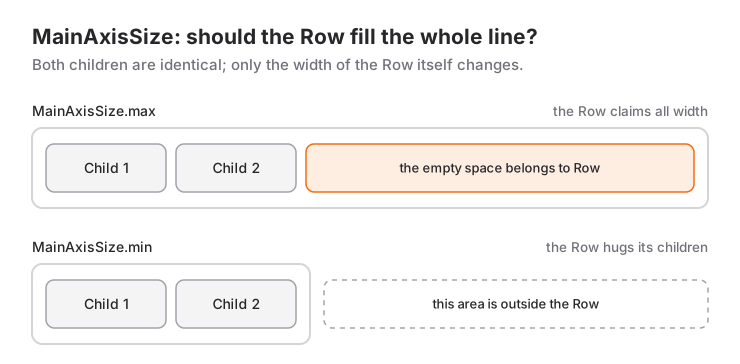
MainAxisSize.max (Default)
If you write nothing, Row and Column use max: they grow as far as the parent allows and place their children inside that space.
Row(
  mainAxisSize: MainAxisSize.max, // Default, same result if omitted
  children: const [
    Icon(Icons.star),
    Text('Maximum width'),
    Icon(Icons.star),
  ],
)
Even if the children add up to 150 pixels, the Row is as wide as the screen. The difference is free space, and mainAxisAlignment is what distributes it.
MainAxisSize.min
With min, the Row or Column is exactly as large as the sum of its children and takes nothing more:
Row(
  mainAxisSize: MainAxisSize.min,
  children: const [
    Icon(Icons.star),
    Text('Minimum width'),
    Icon(Icons.star),
  ],
)
A Column follows the same logic on the vertical axis: with min it is only as tall as its content. One detail matters here: the parameter affects the main axis only. The width of a Column, or the height of a Row, is already determined by the largest child.
| Property | MainAxisSize.max | MainAxisSize.min |
|---|---|---|
| Size on the main axis | As much as the parent allows | The sum of the children |
| Default | Yes | No |
| Free space | Exists, distributed by mainAxisAlignment |
None, nothing left to distribute |
| Typical use | Screen skeleton, toolbar row | Badge, dialog content, button group |
Constraints Always Have the Last Word
In Flutter a widget does not pick its size on its own. The parent sends constraints and the child chooses a size within that range. mainAxisSize works inside this rule, and in two situations it will not behave the way you expect:
- With tight constraints
minhas no effect. A child of a ListView, a child of a Column withcrossAxisAlignment: CrossAxisAlignment.stretch, or a Row insideSizedBox(width: double.infinity)is told "be exactly this wide", and it will be, whatever you write. - With unbounded constraints
maxbehaves likemin. A Column inside aSingleChildScrollViewis offered infinite height; it cannot fill infinity, so it ends up as tall as its content.
If you want to see where Row and Column sit in the widget tree first, the widget tree, Row, Column and Stack post is a good starting point.
mainAxisSize and Alignment: A Row Lays Out in Three Steps
mainAxisSize, mainAxisAlignment and crossAxisAlignment look like three independent settings, but alignment operates on the free space the size setting leaves behind. When a Row (or Column) places its children, it does three things in order:
- It measures the non-flexible children, then hands the remaining space to
ExpandedandFlexiblechildren. - It decides its own main-axis size based on
mainAxisSize: withmaxthe largest size the parent allows, withminthe sum of the children. - It distributes the difference between its own size and the children's total, the free space, according to the
mainAxisAlignmentrule.
The third step explains everything. When you choose min, the Row is already exactly as large as its children, so the free space is zero; writing center, end, spaceBetween or spaceEvenly has no visible result. The code runs without errors, there is simply nothing to align.
// These two Rows look identical: with min there is no free space, so center does nothing.
Row(
  mainAxisSize: MainAxisSize.min,
  mainAxisAlignment: MainAxisAlignment.center,
  children: const [Icon(Icons.star), Text('Favorite')],
)

Row(
  mainAxisSize: MainAxisSize.min,
  children: const [Icon(Icons.star), Text('Favorite')],
)| Combination | Result |
|---|---|
max + start |
Children on the left, free space on the right (default) |
max + center |
Children in the middle, free space on both sides |
max + spaceBetween |
Free space is shared between the children |
min + any value |
No free space, alignment is invisible |
min + an Expanded or Spacer inside |
The flexible child claims all space, so the Row behaves like max |
Two ways to center a group
When you say "center the Row" you can actually mean two different things, and the code differs.
If the Row itself should stay full width while its children sit in the middle, use max with mainAxisAlignment.center. Give the Row a background and that background spans the whole line.
If the Row as a whole should be as wide as its content and that whole should sit in the middle, give the Row min and leave the positioning to the parent widget:
Center(
  child: Container(
    padding: const EdgeInsets.symmetric(horizontal: 12, vertical: 6),
    color: Colors.amber,
    child: Row(
      mainAxisSize: MainAxisSize.min,
      children: const [Icon(Icons.star), SizedBox(width: 4), Text('Favorite')],
    ),
  ),
)
Here the background wraps only the icon and the text. To push it to the right, Align(alignment: Alignment.centerRight, ...) replaces Center; the other options are in the Align widget post. In short, the rule is: the position of a Row with min is decided by the widget wrapping it, not by the Row itself.
crossAxisAlignment works on a separate axis
crossAxisAlignment manages vertical alignment in a Row and horizontal alignment in a Column, and it is not affected by mainAxisSize. A Row's height is always that of its tallest child; the other children are aligned within that height using start, center, end or baseline. Since the default is center, an icon and a text of different sizes center themselves automatically.
The one exception is stretch: it forces the children to the largest size on the cross axis. For that the cross axis must be bounded; the mistakes section below shows what happens when it is not.
One more detail about direction: start and end follow the text direction. In right-to-left languages such as Arabic, MainAxisAlignment.start in a Row means the right side; if you need a hard left alignment, give the Row textDirection: TextDirection.ltr.
Recipes: Dialogs, Button Groups and Bottom Sheets
min earns its keep in small pieces whose height or width has to come from their content.
Dialog content
Put a Column inside an AlertDialog, run the app, and the dialog covers almost the entire screen. A dialog offers its content an upper bound close to the screen height; a Column running with max takes all of that bound, while one running with min takes only as much as its icon and text need:
Future<bool?> showDeleteDialog(BuildContext context) {
  return showDialog<bool>(
    context: context,
    builder: (context) => AlertDialog(
      title: const Text('Delete note'),
      content: Column(
        mainAxisSize: MainAxisSize.min,
        children: const [
          Icon(Icons.warning_amber_rounded, size: 48, color: Colors.orange),
          SizedBox(height: 16),
          Text('This note will be deleted permanently.'),
        ],
      ),
      actions: [
        TextButton(
          onPressed: () => Navigator.pop(context, false),
          child: const Text('Cancel'),
        ),
        FilledButton(
          onPressed: () => Navigator.pop(context, true),
          child: const Text('Delete'),
        ),
      ],
    ),
  );
}
If the content is a single Text, you do not need a Column at all; write content: Text(...) directly. Do not build your own Row for the bottom buttons either; use the actions parameter: when the buttons do not fit, it stacks them vertically on its own, while a hand-written Row overflows. The other dialog parameters are covered in the AlertDialog usage post.
Bordered button group
In small groups such as a quantity stepper or like/share icons, min is mandatory whenever the Row has a border or a background; otherwise the border stretches across the whole line:
class QuantityStepper extends StatelessWidget {
  const QuantityStepper({
    super.key,
    required this.value,
    required this.onChanged,
  });

  final int value;
  final ValueChanged<int> onChanged;

  @override
  Widget build(BuildContext context) {
    return DecoratedBox(
      decoration: BoxDecoration(
        border: Border.all(color: Theme.of(context).colorScheme.outline),
        borderRadius: BorderRadius.circular(12),
      ),
      child: Row(
        mainAxisSize: MainAxisSize.min,
        children: [
          IconButton(
            onPressed: value > 1 ? () => onChanged(value - 1) : null,
            icon: const Icon(Icons.remove),
          ),
          Text('$value'),
          IconButton(
            onPressed: () => onChanged(value + 1),
            icon: const Icon(Icons.add),
          ),
        ],
      ),
    );
  }
}
Because the group is only as wide as its content, moving it as a whole becomes easy: center it with Center, push it to the right with Align. Trying to position it through the Row's own mainAxisAlignment does not work, for the reason explained above.
Bottom sheet
Picture a product page where tapping "Add to cart" opens a small panel from the bottom: product name, quantity stepper and a full-width confirm button. The QuantityStepper from above is used here:
void showAddToCartSheet(BuildContext context) {
  var quantity = 1;

  showModalBottomSheet<void>(
    context: context,
    showDragHandle: true,
    builder: (context) {
      return StatefulBuilder(
        builder: (context, setSheetState) {
          return SafeArea(
            child: Padding(
              padding: const EdgeInsets.fromLTRB(24, 0, 24, 24),
              child: Column(
                mainAxisSize: MainAxisSize.min,
                crossAxisAlignment: CrossAxisAlignment.stretch,
                children: [
                  Text(
                    'Filter coffee 250 g',
                    style: Theme.of(context).textTheme.titleMedium,
                  ),
                  const SizedBox(height: 16),
                  Center(
                    child: QuantityStepper(
                      value: quantity,
                      onChanged: (v) => setSheetState(() => quantity = v),
                    ),
                  ),
                  const SizedBox(height: 16),
                  FilledButton(
                    onPressed: () => Navigator.pop(context),
                    child: const Text('Add to cart'),
                  ),
                ],
              ),
            ),
          );
        },
      );
    },
  );
}
Two separate min values do two separate jobs here. The min on the Column makes the sheet rise only as high as its three rows of content; without it the panel would grow to the largest height allowed. The min on the Row wraps the stepper's border around its content. Because the Column is stretch, the button is full width; the stepper escapes that forcing through Center and stays compact in the middle. If the sheet holds a list that could fill the screen, min is not enough; use isScrollControlled: true with a scrollable body.
When to Use It and When Not To
Reach for min when a Container, Card or DecoratedBox wrapping the Row or Column should hug its content, when you want to center or right-align the group as one unit, and in places such as dialogs and bottom sheets where the height has to come from the content.
Stay with max when you want to spread children with spaceBetween or spaceEvenly, when you center items in a full-width toolbar, when you use Expanded or Spacer inside, or when you are building the main skeleton of a screen. In these cases the free space is part of the design.
For some jobs another widget is the right tool:
- To keep a single child at its own size and position it, you do not need a Row at all; Align or
Centeris enough. - For tags and chips that must continue on the next line when they do not fit, use
Wrap;mindoes not prevent overflow. - For "pick one" groups (Day / Week / Month),
SegmentedButtongives you the selected state and accessibility for free. - If you need flexible space between two items,
Spacercan be more readable thanspaceBetween; the difference is in the Spacer post.
Common Mistakes
1. min is set, but the Row is still full width
Symptom: the badge background spans the whole row even though you wrote min. The cause is the tight constraint described above: the parent forces the width. Being a child of a ListView or sitting inside a Column with stretch is enough for that. The fix is to put a widget in between that loosens the constraint:
ListView(
  children: [
    Align(
      alignment: Alignment.centerLeft,
      child: Container(
        color: Colors.amber,
        child: Row(
          mainAxisSize: MainAxisSize.min,
          children: const [Icon(Icons.bolt), Text('Fast delivery')],
        ),
      ),
    ),
  ],
)
2. Putting Expanded or Spacer inside a Row or Column with min
Symptom: you wrote min, yet the Row still takes the full width or the dialog still stretches from top to bottom. Expanded and Spacer demand all the remaining space, and once one child takes everything, the total is everything. If you want it to hug its content, remove the flexible child or use Flexible instead (its default fit is FlexFit.loose, so the child is allowed to stay small). Inside dialogs and sheets, spacing must be fixed: SizedBox(height: 16). The difference between Expanded and Flexible is covered in detail in the Expanded vs Flexible vs Spacer comparison.
3. Expecting min plus mainAxisAlignment.center to center anything
Symptom: The Row's children stay on the left, no error appears. The reason is that the free space is zero. Either drop min and use max with center, or keep min and wrap the Row in Center. Which one you choose depends on whether the background should cover the line or the content.
4. Thinking min prevents overflow
Symptom: On a small screen or with the keyboard open, a yellow-and-black stripe appears at the bottom of the dialog together with A RenderFlex overflowed by ... pixels on the bottom. min does not shrink content; it only refuses the empty space. If the content can grow, make it scrollable:
AlertDialog(
  scrollable: true,
  title: const Text('Terms of use'),
  content: Column(
    mainAxisSize: MainAxisSize.min,
    children: const [
      Text('Long text...'),
    ],
  ),
)
5. Using Expanded inside a scrollable area
SingleChildScrollView(
  child: Column(
    children: [
      const Text('Title'),
      Expanded(child: Container(color: Colors.blue)), // Error
    ],
  ),
)
The symptom is this console message: RenderFlex children have non-zero flex but incoming height constraints are unbounded. With infinite height there is no "remaining space" to calculate. The error text itself names the fix: use mainAxisSize: MainAxisSize.min together with FlexFit.loose on the flexible children, or replace Expanded with a fixed height.
6. Giving stretch to a Row inside a Column
Column(
  children: [
    Row(
      crossAxisAlignment: CrossAxisAlignment.stretch, // Error
      children: [Container(color: Colors.blue, child: const Text('A'))],
    ),
  ],
)
Symptom: BoxConstraints forces an infinite height. in the console and a blank screen. Because the Column sets no vertical limit, the Row's children are forced toward infinite height. Give the Row a height: SizedBox(height: 48, child: Row(...)). If matching the tallest child is enough, IntrinsicHeight also works, but it is expensive, so avoid it in long lists.
7. Forgetting textBaseline with baseline alignment
Symptom: As soon as you write crossAxisAlignment: CrossAxisAlignment.baseline, the app stops with the assertion textBaseline is required if you specify the crossAxisAlignment with CrossAxisAlignment.baseline. When aligning two texts of different sizes on their baseline, you must add textBaseline: TextBaseline.alphabetic.
Mini Scenario 1: A Status Badge in an Order List
Picture an order list where every row carries a small badge such as "Shipped" or "Delivered". The badge is a colored Container wrapped around a Row with an icon and a label:
class StatusBadge extends StatelessWidget {
  const StatusBadge({super.key, required this.label, required this.icon});

  final String label;
  final IconData icon;

  @override
  Widget build(BuildContext context) {
    final scheme = Theme.of(context).colorScheme;
    return Container(
      padding: const EdgeInsets.symmetric(horizontal: 10, vertical: 4),
      decoration: BoxDecoration(
        color: scheme.secondaryContainer,
        borderRadius: BorderRadius.circular(999),
      ),
      child: Row(
        mainAxisSize: MainAxisSize.min,
        children: [
          Icon(icon, size: 16, color: scheme.onSecondaryContainer),
          const SizedBox(width: 6),
          Text(label, style: TextStyle(color: scheme.onSecondaryContainer)),
        ],
      ),
    );
  }
}
A Container takes its size from its child. If the Row used max, the Container would stretch across the row and the badge would turn into a colored stripe. With min the Container hugs the icon and the text. Place the badge in a Column with crossAxisAlignment: CrossAxisAlignment.start and it sits compact on the left; if that Column used stretch, you would be back at mistake 1 and would have to wrap the badge in Align.
Mini Scenario 2: A Chat Bubble
Picture a messaging screen. Your own messages sit on the right, the other person's on the left; each bubble is as wide as its text but at most three quarters of the screen. Inside the bubble there is the text and a small timestamp at the bottom right:
class ChatBubble extends StatelessWidget {
  const ChatBubble({
    super.key,
    required this.text,
    required this.time,
    required this.isMine,
  });

  final String text;
  final String time;
  final bool isMine;

  @override
  Widget build(BuildContext context) {
    final scheme = Theme.of(context).colorScheme;
    final maxWidth = MediaQuery.sizeOf(context).width * 0.75;

    return Align(
      alignment: isMine ? Alignment.centerRight : Alignment.centerLeft,
      child: Container(
        constraints: BoxConstraints(maxWidth: maxWidth),
        margin: const EdgeInsets.symmetric(horizontal: 12, vertical: 4),
        padding: const EdgeInsets.fromLTRB(12, 8, 8, 6),
        decoration: BoxDecoration(
          color: isMine ? scheme.primaryContainer : scheme.surfaceContainerHighest,
          borderRadius: BorderRadius.circular(16),
        ),
        child: Row(
          mainAxisSize: MainAxisSize.min,
          crossAxisAlignment: CrossAxisAlignment.end,
          children: [
            Flexible(child: Text(text)),
            const SizedBox(width: 8),
            Text(time, style: Theme.of(context).textTheme.labelSmall),
          ],
        ),
      ),
    );
  }
}
The three settings do three separate jobs here. The min on the Row makes the bubble's background wrap only the text and the time; with max every bubble would be three quarters wide. Whether the bubble sits on the right or the left is decided by the surrounding Align, not by the Row; had you tried to do it with mainAxisAlignment, nothing would have happened because of min. crossAxisAlignment: CrossAxisAlignment.end drops the timestamp to the last line of a multi-line message. The text is wrapped in Flexible because a long message has to wrap at the bubble's limit; with Expanded the text would always claim the full width and min would lose its effect.
Frequently Asked Questions
What is the default value of mainAxisSize?
For both Row and Column the default is MainAxisSize.max. If you write nothing, the widget grows along its main axis as far as the parent allows.
Why does mainAxisAlignment.center not work?
Most likely the Row or Column has mainAxisSize: MainAxisSize.min. With min there is no free space left, so the alignment is invisible. Either use max or wrap the widget in Center.
Why does my AlertDialog fill the whole screen?
The Column inside content runs with the default MainAxisSize.max, so it takes all the height the dialog allows. Add mainAxisSize: MainAxisSize.min to the Column and the dialog becomes as tall as its content. If the content still does not fit, set scrollable: true.
Does mainAxisSize.min fix overflow errors?
No. min only declines the free space; if the children add up to more than the available room, you still get "RenderFlex overflowed". Overflow needs Expanded, Flexible, Wrap or a scrollable widget.
Why is my Row still full width even though I set min?
Most likely the parent sends tight constraints (ListView child, a Column with stretch, a SizedBox with infinite width), or there is an Expanded or Spacer inside the Row. Wrapping the Row in Align or Center, or removing the flexible child, solves it.
Does mainAxisSize affect the cross axis as well?
No, only the main axis. A Column is as wide as its widest child; to fill the width, use crossAxisAlignment: CrossAxisAlignment.stretch. That in turn requires the cross axis to be bounded.
Related Posts
Flutter: Flexible Spaces with Spacer Widget
What Spacer is under the hood, sizing gaps with flex, how it differs from SizedBox and mainAxisAlignment, and why it breaks in scrollable areas.
Flutter: Expanding Space with Expanded Widget
A deep dive into Expanded: how the flex ratio is computed, nesting, why it only works inside Row and Column, and the three errors you see most often.
Flutter Basics: Widget Tree, Row, Column and Stack
After learning Dart, I finally transitioned to Flutter. On my first day, I'm learning the widget tree, Row, Column and Stack structures.