Flutter: Expanding Space with Expanded Widget
Last updated:
7 min read

Expanded grows a child inside a Row or Column so that it takes all the space left over by its siblings. A text filling the gap between an icon and a button, a list taking the height left above a bottom bar, two panels sharing the screen 2:1: all of that is this widget's job. This post focuses on Expanded itself: the flex math, nesting, why it only works inside Row, Column and Flex, and the three errors you see most often in the console. When to pick Flexible or Spacer instead of Expanded, plus layout recipes that combine all three, is covered separately in the Expanded vs Flexible vs Spacer comparison; this post sticks to Expanded's own behavior.
Live Demo: Expanded Widget Examples
Try Expanded and flex usage interactively:
💡 If the example above doesn't load, click DartPad to run it in a new tab.
Basic Usage
Inside a Row, Expanded works on the horizontal axis; inside a Column, on the vertical one. Fixed-size children are measured first, and whatever remains goes to Expanded:
Row(
  children: [
    Container(width: 50, color: Colors.red),
    Expanded(
      child: Container(color: Colors.blue, child: const Text('I expanded')),
    ),
    Container(width: 50, color: Colors.green),
  ],
)
The blue container takes all the width left after red and green. Move the same code into a Column and replace width with height, and the blue area fills the remaining height. Expanded does not touch the cross axis: the height of an Expanded inside a Row is decided by the Row's crossAxisAlignment rule.
The Flex Math
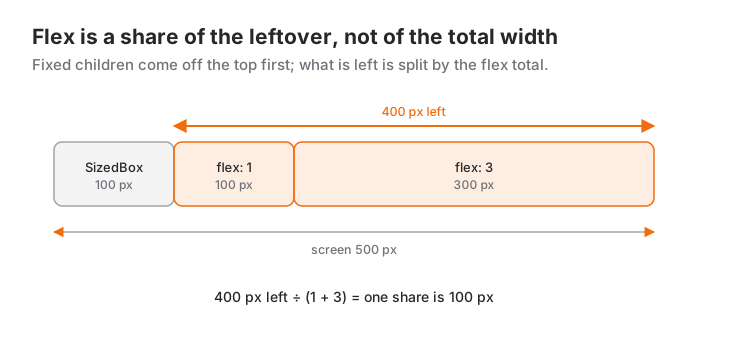
With more than one Expanded, the remaining space is split in proportion to the flex values. The calculation has two steps: fixed children are subtracted first, then the remainder is divided by the flex total and each child receives its share.
Row(
  children: [
    const SizedBox(width: 100, child: Text('Fixed')),
    Expanded(
      flex: 1,
      child: Container(color: Colors.red, child: const Text('1 share')),
    ),
    Expanded(
      flex: 3,
      child: Container(color: Colors.blue, child: const Text('3 shares')),
    ),
  ],
)
On a 500 pixel wide screen, 100 pixels of fixed width come off first; the remaining 400 pixels are divided into 1+3 = 4 shares: red gets 100, blue gets 300. A common misconception is reading flex: 1 and flex: 3 as one quarter and three quarters of the total width; the ratio always applies to the remaining space. Without flex the value is 1, so two bare Expanded widgets split the space in half.
Flex values are only meaningful relative to each other: flex: 2 and flex: 4 produce the same result as flex: 1 and flex: 2. Use the smallest integers for readability.
What Expanded Really Is
Expanded is shorthand for Flexible(fit: FlexFit.tight). tight means telling the child "be exactly this big"; even if the child would rather be smaller, it fills all the remaining space. FlexFit.loose, the default of Flexible, says "be at most this big". This distinction also explains why a Container with width: 100 inside an Expanded ignores its width: the tight constraint overrides the Container's wish.
Another consequence: Expanded pushes a Row to full width even when the Row has mainAxisSize: MainAxisSize.min, because it demands all the remaining space. I discuss that interaction in the mainAxisSize post.
Nested Expanded
The child of an Expanded can be a Row or Column that contains further Expanded widgets. Each Expanded only looks at the Flex widget directly above it:
Row(
  children: [
    Expanded(
      flex: 2,
      child: Column(
        children: [
          Expanded(child: Container(color: Colors.red)),
          Expanded(child: Container(color: Colors.blue)),
        ],
      ),
    ),
    Expanded(
      child: Container(color: Colors.green),
    ),
  ],
)
The outer Row splits the width 2:1; the Column on the left divides the height of its share into two equal parts. The inner Expanded widgets have nothing to do with the outer Row. This works because the outer Row receives a bounded height from the screen and passes it on to the Column. If the height were unbounded, the inner Expanded widgets would throw; see below.
When to Use It and When Not To
Use Expanded inside a Row or Column whenever one child should be sized by the "whatever is left" rule: a long text filling the space between an icon and a button, a content area taking all the height above a bottom bar, columns sharing the screen proportionally.
In these situations you need a different tool:
- If the child should keep its own size but shrink when it does not fit, use
Flexible(defaultloose). In content-wrapping layouts such as a chat bubble, Expanded stretches the text to full width for no reason. - If you only need empty space, use
Spacer. Instead of an emptyExpanded(child: SizedBox()),Spacer(flex: 2)does the same job readably; details in the Spacer post. - If you want full width outside a Row or Column, use
SizedBox(width: double.infinity)orcrossAxisAlignment: CrossAxisAlignment.stretchon the Column. Expanded throws inside a non-Flex parent. - If you need a specific percentage of the parent, use
FractionallySizedBox(widthFactor: 0.6). Expanded only builds ratios relative to its siblings. - Inside a scrollable area the main axis has no limit, so Expanded cannot work there. Give a fixed height or make the list itself scrollable.
Common Mistakes
1. Expanded in a Column inside a ScrollView
SingleChildScrollView(
  child: Column(
    children: [
      const Text('Title'),
      Expanded(child: ListView(children: const [Text('Row')])), // Error
    ],
  ),
)
Symptom: RenderFlex children have non-zero flex but incoming height constraints are unbounded. The ScrollView offers the Column infinite height, and the "remainder" of infinity cannot be computed. There are three ways out: remove Expanded and give the inner list a fixed height such as SizedBox(height: 300); give the inner list shrinkWrap: true and physics: NeverScrollableScrollPhysics() and let the outer scroll do the work; or take the Column out of the ScrollView and make only the list scrollable. For long lists the third is the most efficient; the scrolling options are in the ScrollView and list widgets post.
2. Putting another widget between Expanded and the Row
Row(
  children: [
    Padding(
      padding: const EdgeInsets.all(8),
      child: Expanded(child: Text('Text')), // Error
    ),
  ],
)
Symptom: A long error starting with Incorrect use of ParentDataWidget. Expanded is a "parent data" widget; it writes its flex information directly onto the Row above it. With a Padding, Container or Center in between, the information goes to the wrong place. Reverse the order: Expanded first, Padding inside it.
3. Giving a fixed width inside Expanded
Symptom: You wrote Expanded(child: Container(width: 120, ...)) and the container still spread across all the remaining space. The tight constraint overrides the Container's width. If you want a fixed width, remove Expanded; if you want "at most 120", use Flexible with ConstrainedBox(constraints: BoxConstraints(maxWidth: 120)).
4. Forgetting Expanded around long text
Symptom: A yellow-and-black stripe on the right edge and A RenderFlex overflowed by ... pixels on the right. A Row does not limit how much space a text may ask for. Wrap the text in Expanded and add overflow: TextOverflow.ellipsis:
Row(
  children: [
    const Icon(Icons.label),
    const SizedBox(width: 8),
    Expanded(
      child: Text(
        'A label text too long to fit on one line',
        overflow: TextOverflow.ellipsis,
      ),
    ),
  ],
)
Mini Scenario: A Checkout Screen
Picture a checkout screen: scrollable form fields at the top, and "Back" and "Complete payment" buttons that are always visible at the bottom. The Expanded in the Column stretches the form over the remaining height; the two Expanded widgets in the Row share the buttons 1:2:
class CheckoutScreen extends StatelessWidget {
  const CheckoutScreen({super.key});

  @override
  Widget build(BuildContext context) {
    return Scaffold(
      appBar: AppBar(title: const Text('Checkout')),
      body: Column(
        children: [
          Expanded(
            child: ListView(
              padding: const EdgeInsets.all(16),
              children: const [
                TextField(decoration: InputDecoration(labelText: 'Card number')),
                SizedBox(height: 12),
                TextField(decoration: InputDecoration(labelText: 'Expiry date')),
                SizedBox(height: 12),
                TextField(decoration: InputDecoration(labelText: 'CVC')),
              ],
            ),
          ),
          SafeArea(
            top: false,
            child: Padding(
              padding: const EdgeInsets.all(16),
              child: Row(
                children: [
                  Expanded(
                    child: OutlinedButton(
                      onPressed: () => Navigator.pop(context),
                      child: const Text('Back'),
                    ),
                  ),
                  const SizedBox(width: 12),
                  Expanded(
                    flex: 2,
                    child: FilledButton(
                      onPressed: () {},
                      child: const Text('Complete payment'),
                    ),
                  ),
                ],
              ),
            ),
          ),
        ],
      ),
    );
  }
}
This works because Scaffold gives the body a bounded height; the Column measures the bottom buttons first and leaves the rest to Expanded. When the keyboard opens, the body shrinks, the Expanded area narrows automatically and the list stays scrollable. Had you put the same list inside a SingleChildScrollView, you would hit the first mistake. In the button row, SizedBox(width: 12) is fixed, so it is subtracted before the calculation; the remaining width is split into three shares and "Complete payment" takes two of them.
Frequently Asked Questions
What is the difference between Expanded and Flexible?
Expanded is the same as Flexible(fit: FlexFit.tight): the child must fill all the remaining space. The default loose value of Flexible allows the child to stay smaller.
Why does Expanded not work inside a Container?
Expanded can only be a direct child of Row, Column or Flex. Inside any other widget you get Incorrect use of ParentDataWidget; for full width use SizedBox(width: double.infinity).
How do I fix "incoming height constraints are unbounded"?
The Expanded sits in a Column whose parent offers unbounded constraints on the main axis, usually a SingleChildScrollView or ListView. Remove the Expanded and give a fixed height, or take the Column out of the scroll area.
Is the flex value a percentage of the total space?
No. Fixed-size siblings are subtracted first, then the remaining space is divided by the flex total. If the Row contains a 100 pixel fixed child, flex: 1 and flex: 1 each take half of the remainder, not half of the total.
Related Posts
Flutter: Flexible Spaces with Spacer Widget
What Spacer is under the hood, sizing gaps with flex, how it differs from SizedBox and mainAxisAlignment, and why it breaks in scrollable areas.
Flutter: Space and Alignment Control with mainAxisSize
max vs min in mainAxisSize, how constraints interfere, why mainAxisAlignment seems to do nothing, and recipes for dialogs, bottom sheets and button groups.
Flutter: Expanded vs Flexible vs Spacer, With Recipes
The difference between Expanded, Flexible and Spacer, loose vs tight fit, and four recipes that combine them: toolbar, card footer, form rows, split screen.