Flutter: Inner Space Management with Padding
Last updated:
7 min read

Padding is a single-purpose widget that leaves empty space around its child: it subtracts the EdgeInsets from the constraints it receives, lays the child out in what remains, and shifts it inward by the given amount. Keeping card content off the edges, letting a list row breathe, holding a page 16 pixels away from the screen border: all of that is this widget's job. In this post I cover every EdgeInsets constructor, EdgeInsetsDirectional for right-to-left languages, how Padding relates to SafeArea and keyboard insets, and the errors you will most often see in the console.
Basic Usage
Padding(
  padding: const EdgeInsets.all(16),
  child: Text('I have 16 pixels of space around me'),
)
As the official Padding widget API docs point out, Padding itself is invisible; it has no background color and adds no tap area. It only shrinks the space handed to its child and offsets the child. When you are wondering "where did my spacing go?", selecting the Padding in the Flutter Inspector and looking at the blue hatched area is the fastest way to find out.
EdgeInsets Constructors
Spacing values are expressed with the EdgeInsets class. There are four constructors and one constant; which one you pick is a readability choice, the result is the same.
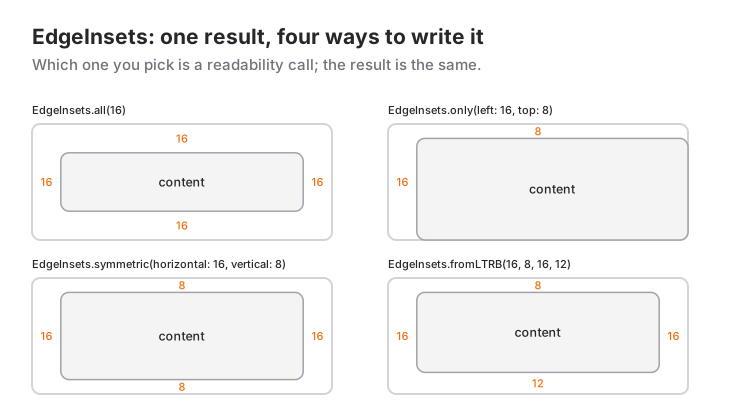
// All four sides equal
const EdgeInsets.all(16)

// Horizontal (left+right) and vertical (top+bottom) separately
const EdgeInsets.symmetric(horizontal: 16, vertical: 8)

// Only the sides you name; the rest are 0
const EdgeInsets.only(left: 16, top: 8)

// Left, Top, Right, Bottom in that order
const EdgeInsets.fromLTRB(16, 8, 16, 12)

// No spacing at all
EdgeInsets.zero
If the values never change, write const so the widget tree does not allocate a new EdgeInsets on every build. fromLTRB lists four bare numbers and is the hardest to read; even when three or four sides differ, prefer the named parameters of only.
EdgeInsetsDirectional: Right-to-Left Languages
left and right are physical directions. When your app runs in a right-to-left (RTL) language such as Arabic or Hebrew, "16 pixels at the start of the text" means the right edge, and left picks the wrong side. As the EdgeInsetsDirectional API docs explain, EdgeInsetsDirectional works with start and end and flips itself according to the ambient Directionality:
Padding(
  padding: const EdgeInsetsDirectional.only(start: 16, end: 8),
  child: Text('16 on the left in LTR, 16 on the right in RTL'),
)EdgeInsetsDirectional.all, .symmetric and .fromSTEB (Start, Top, End, Bottom) exist as well. If your app ships in one left-to-right language only, physical EdgeInsets is enough; in a multilingual app, using the Directional version wherever horizontal spacing is asymmetric saves you a rewrite later.
Padding, Container(padding) and SizedBox
Three different tools deal with space and they get mixed up:
Padding: space around a single child. The lightest option.Container(padding: ...): if a Container is already there for a color, border or rounded corners, use itspaddingparameter. Container turns it into aPaddingwidget under the hood anyway; wrapping a separate Padding works but adds needless nesting.SizedBox(height: 16): a gap between two sibling widgets. To put distance between two texts in a Column, use SizedBox rather than Padding; Padding surrounds a child, it is not a separator between siblings. More on that in the SizedBox post.
Then there is margin: Container's margin is outer space, so the background color starts after the gap. padding is inner space, so the background covers the gap too. A colored Container is the clearest way to see the difference.
SafeArea and System Insets
The notch, the status bar and the bottom navigation bar cover part of the screen. SafeArea is a specialised widget that adds exactly that much padding:
Scaffold(
  body: SafeArea(
    child: Padding(
      padding: const EdgeInsets.all(16),
      child: Column(children: [Text('Inside the safe area')]),
    ),
  ),
)
If you want to read how much the system covers yourself, MediaQuery.paddingOf(context) returns an EdgeInsets; MediaQuery.paddingOf(context).bottom, for example, is the height of the bottom navigation bar. The area taken by the keyboard is read through MediaQuery.viewInsetsOf(context).bottom. Scaffold usually handles that for you via resizeToAvoidBottomInset, but if you build a custom bottom panel outside a Scaffold you need to add that value to your padding. Reading screen measurements with MediaQuery is covered in the MediaQuery post.
When to Use It and When Not To
Reach for Padding:
- When you want the content of a single widget away from its edges.
- To separate the page body from the screen border (
EdgeInsets.all(16)orsymmetric(horizontal: 16)). - For the inner space of containers such as cards, list rows and dialogs.
Do not use Padding:
- For distance between siblings:
SizedBox(or thespacingparameter of Row and Column in current Flutter versions) is cleaner. - For the edge inset of a ListView: use
ListView(padding: ...). If you wrap the ListView in a Padding from the outside, the scroll area shrinks too; items get cut off at a hard line instead of sliding under the edges. - For space inside a button: style parameters such as
ElevatedButton.styleFrom(padding: ...)enlarge the tap target; a Padding wrapped around the button does not. - For negative space:
EdgeInsetsrejects negative values. To push a child outside its box useTransform.translateorOverflowBox.
Common Mistakes
1. Padding squeezes the child in a tight box
Symptom: you added padding inside a fixed-width box and the text wrapped or the icon shrank. Padding never grows its own size; it subtracts the inset from what it receives and hands the child the rest. Inside a 100 pixel SizedBox, EdgeInsets.all(20) leaves the child 60 pixels.
// The child gets 60 pixels of width
SizedBox(
  width: 100,
  child: Padding(
    padding: const EdgeInsets.all(20),
    child: Text('A long text will wrap here'),
  ),
)
Fix: make the box larger by the padding amount, or move the padding outside the box.
2. Padding a long text inside a Row
Symptom: A RenderFlex overflowed by 42 pixels on the right. Row gives its children unbounded width; Padding passes that on to the text, which stays on one line and overflows.
Row(
  children: [
    const Icon(Icons.info),
    Expanded(
      child: Padding(
        padding: const EdgeInsets.only(left: 8),
        child: Text('This text now wraps inside the remaining space'),
      ),
    ),
  ],
)
Putting the Padding inside an Expanded solves it; why Expanded is needed there is explained in the Expanded post.
3. Passing a negative value
Symptom: the app crashes in debug mode with the assertion 'padding.isNonNegative': is not true. EdgeInsets cannot be negative; if the intent is to shift the child, use Transform.translate(offset: Offset(-10, 0)).
4. Wrapping a ListView in SafeArea
Symptom: when the list scrolls, items do not slide under the status bar naturally; a hard gap stays at the top. When no padding is given, ListView already applies the system insets along its scroll axis by itself; a SafeArea wrapped around it only shrinks the list. Fix: remove the SafeArea and either leave padding unset or pass your own value such as ListView(padding: MediaQuery.paddingOf(context)). Items slide under the notch while scrolling, and the first item still starts inside the safe area.
Mini Scenario: Login Form
Picture a login screen: content 24 pixels from the screen edge, 16 pixels between fields, and the button must not get stuck to the keyboard while scrolling.
class LoginScreen extends StatelessWidget {
  const LoginScreen({super.key});

  @override
  Widget build(BuildContext context) {
    return Scaffold(
      body: SafeArea(
        child: SingleChildScrollView(
          padding: const EdgeInsets.symmetric(horizontal: 24, vertical: 32),
          child: Column(
            crossAxisAlignment: CrossAxisAlignment.stretch,
            children: [
              Text('Sign in', style: Theme.of(context).textTheme.headlineMedium),
              const SizedBox(height: 24),
              const TextField(
                decoration: InputDecoration(
                  labelText: 'Email',
                  contentPadding: EdgeInsets.symmetric(horizontal: 16, vertical: 14),
                  border: OutlineInputBorder(),
                ),
              ),
              const SizedBox(height: 16),
              const TextField(
                obscureText: true,
                decoration: InputDecoration(
                  labelText: 'Password',
                  border: OutlineInputBorder(),
                ),
              ),
              const SizedBox(height: 24),
              FilledButton(
                style: FilledButton.styleFrom(
                  padding: const EdgeInsets.symmetric(vertical: 16),
                ),
                onPressed: () {},
                child: const Text('Sign In'),
              ),
            ],
          ),
        ),
      ),
    );
  }
}
Three spacing tools work together here: SingleChildScrollView.padding sets the page margins and is part of the scrollable area; SizedBox provides the distance between fields; contentPadding and FilledButton.styleFrom(padding:) are the components' own inner space and enlarge their tap targets. SafeArea takes care of the notch and Scaffold takes care of the keyboard. The validation side of this form is covered in the Form widget post.
Frequently Asked Questions
What is the difference between padding and margin?
Padding is inner space: the widget's background covers the gap as well. Margin is outer space: the background starts after the gap. Flutter has no separate Margin widget; Container's margin parameter is really a Padding wrapped around the outside.
Is Container padding or the Padding widget faster?
They do the same job; when Container receives padding it creates a Padding widget internally. If you only need spacing, Padding produces fewer widgets; if a Container is already there for a color or border, use its padding parameter.
Why does EdgeInsets not accept negative values?
Padding hands the child whatever space is left; a negative value would mean giving the child more space than it received, which contradicts the layout model. Use Transform.translate to shift a child outward and OverflowBox to let it overflow.
How does padding work correctly in right-to-left languages?
Use the start/end parameters of EdgeInsetsDirectional instead of left/right. The widget picks the leading edge automatically from the nearest Directionality; only symmetric horizontal spacing makes no difference.
Related Posts
Flutter: Screen-Based Scaling with MediaQuery
Sizing by screen with MediaQuery.sizeOf, paddingOf and textScalerOf; when LayoutBuilder or FractionallySizedBox is the better tool, and the common mistakes.
Flutter: Fine Alignment Operations with Align Widget
Precise placement with Align: the Alignment(x, y) coordinate system, FractionalOffset, widthFactor and heightFactor, Align vs Positioned in a Stack.
Flutter: Layering Widgets with Stack and Positioned
Flutter Stack and Positioned guide: how a Stack sizes itself, fit, alignment, clipBehavior, Positioned.fill, PositionedDirectional, badge and overlay recipes.