Flutter: GridView Widget Usage
Last updated:
8 min read

GridView arranges items in a grid of rows and columns and makes whatever does not fit on screen scrollable. You meet it wherever same-sized boxes sit side by side: a photo gallery, a product catalog, a category picker. Think of it as ListView's grid cousin: the same constructor logic, the same lazy building, plus a delegate that decides how big each cell is. That delegate and the cell ratio are the real subject of this post, because most GridView bugs come from there.
Live Demo
You can try this widget in the interactive example below:
💡 If the example above doesn't load, click DartPad to run it in a new tab.
Basic Usage: GridView.count
The shortest route is to state the number of columns. With crossAxisCount: 2 Flutter splits the available width in two and makes every cell square:
GridView.count(
  crossAxisCount: 2, // 2 columns
  children: [
    Container(color: Colors.red, child: const Center(child: Text('1'))),
    Container(color: Colors.green, child: const Center(child: Text('2'))),
    Container(color: Colors.blue, child: const Center(child: Text('3'))),
    Container(color: Colors.orange, child: const Center(child: Text('4'))),
  ],
)
Like ListView, the children constructor builds every cell up front. That is fine for a hand-written menu of ten or fifteen cells; when the data comes from a list, switch to the builder constructor below.
Important Properties
| Property | Description |
|---|---|
crossAxisCount |
Number of columns (count constructor and the FixedCrossAxisCount delegate) |
maxCrossAxisExtent |
Maximum width a cell may take (extent constructor and the MaxCrossAxisExtent delegate) |
mainAxisSpacing |
Gap between rows |
crossAxisSpacing |
Gap between columns |
childAspectRatio |
Cell width ÷ height, defaults to 1 |
mainAxisExtent |
Pins the cell height in pixels instead of using a ratio |
padding |
Space around the grid |
shrinkWrap / physics |
Used for nested scrolling; the cost is explained below |
GridView.extent with a Maximum Width
Instead of a column count you say "a cell may be at most this wide" and Flutter works out how many columns fit. Rotate the phone or open the app on a tablet and more columns appear on their own:
GridView.extent(
  maxCrossAxisExtent: 150, // Each cell is at most 150 pixels wide
  mainAxisSpacing: 8,
  crossAxisSpacing: 8,
  padding: const EdgeInsets.all(8),
  children: [
    Container(color: Colors.purple, child: const Center(child: Text('A'))),
    Container(color: Colors.pink, child: const Center(child: Text('B'))),
    Container(color: Colors.cyan, child: const Center(child: Text('C'))),
    Container(color: Colors.amber, child: const Center(child: Text('D'))),
  ],
)
Lazy Grids with GridView.builder
When the data comes from a list, use GridView.builder. itemBuilder is called only for the cells that are visible; with 20 items or 20,000, the number of cells alive at any moment is roughly what fits on screen. In this constructor a gridDelegate decides the column layout:
GridView.builder(
  gridDelegate: const SliverGridDelegateWithFixedCrossAxisCount(
    crossAxisCount: 3,
    mainAxisSpacing: 8,
    crossAxisSpacing: 8,
  ),
  itemCount: 20,
  padding: const EdgeInsets.all(8),
  itemBuilder: (context, index) {
    return Container(
      decoration: BoxDecoration(
        color: Colors.primaries[index % Colors.primaries.length],
        borderRadius: BorderRadius.circular(8),
      ),
      child: Center(
        child: Text(
          '${index + 1}',
          style: const TextStyle(color: Colors.white, fontSize: 24),
        ),
      ),
    );
  },
)
Two Delegates: FixedCrossAxisCount and MaxCrossAxisExtent
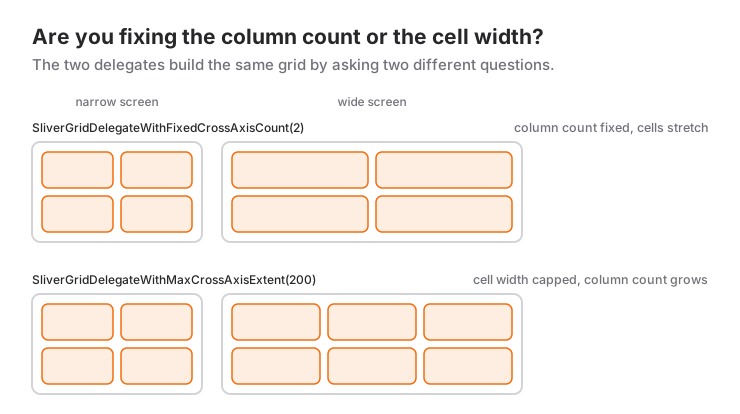
There are two ready-made classes for gridDelegate, and the difference is exactly the difference between count and extent:
SliverGridDelegateWithFixedCrossAxisCount: the column count is fixed and the cell width follows the screen. Pick this when the design says something definite like "always two columns".SliverGridDelegateWithMaxCrossAxisExtent: you cap the cell width and the column count follows the screen. This is the comfortable choice when one codebase has to look right on phone, tablet and web; it gives you sensible responsive behavior without writing a separate LayoutBuilder breakpoint.
GridView.builder(
  gridDelegate: const SliverGridDelegateWithMaxCrossAxisExtent(
    maxCrossAxisExtent: 200,
    mainAxisSpacing: 10,
    crossAxisSpacing: 10,
    childAspectRatio: 1.5,
  ),
  itemCount: 12,
  itemBuilder: (context, index) {
    return Card(
      color: Colors.teal.shade100,
      child: Center(child: Text('Item $index')),
    );
  },
)
How childAspectRatio Is Calculated
In a GridView the cell height does not come from the content; it comes from a ratio. Flutter first finds the cell width: the available width minus padding and column gaps, divided by the column count. Then it computes the height as width ÷ childAspectRatio. So childAspectRatio: 16 / 9 gives wide, squat cards and 0.8 gives tall ones:
GridView.count(
  crossAxisCount: 2,
  childAspectRatio: 16 / 9, // Wide cards
  mainAxisSpacing: 8,
  crossAxisSpacing: 8,
  children: [
    Container(color: Colors.red),
    Container(color: Colors.blue),
    Container(color: Colors.green),
    Container(color: Colors.orange),
  ],
)
What is inside the cell plays no part in this calculation. That is the most misunderstood thing about GridView and the source of the overflow error described below. If you know the height in pixels, skip the ratio and pass mainAxisExtent: 180; the delegate then ignores the ratio and makes every cell 180 pixels tall.
Custom Grid Cards
Cells that hold an icon, a title, a price and a button, like a product card, need a portrait ratio. The example below uses childAspectRatio: 0.8 to make the cell a little taller than it is wide; capping the title with maxLines is a good habit so long names do not overflow:
final List<Map<String, dynamic>> products = [
  {'name': 'Product 1', 'price': '\$99', 'icon': Icons.phone_android},
  {'name': 'Product 2', 'price': '\$149', 'icon': Icons.laptop},
  {'name': 'Product 3', 'price': '\$299', 'icon': Icons.watch},
  {'name': 'Product 4', 'price': '\$79', 'icon': Icons.headphones},
];

GridView.builder(
  gridDelegate: const SliverGridDelegateWithFixedCrossAxisCount(
    crossAxisCount: 2,
    mainAxisSpacing: 12,
    crossAxisSpacing: 12,
    childAspectRatio: 0.8,
  ),
  padding: const EdgeInsets.all(16),
  itemCount: products.length,
  itemBuilder: (context, index) {
    final product = products[index];
    return Card(
      elevation: 4,
      shape: RoundedRectangleBorder(
        borderRadius: BorderRadius.circular(12),
      ),
      child: Column(
        mainAxisAlignment: MainAxisAlignment.center,
        children: [
          Icon(product['icon'], size: 48, color: Colors.blue),
          const SizedBox(height: 12),
          Text(
            product['name'],
            maxLines: 1,
            overflow: TextOverflow.ellipsis,
            style: const TextStyle(fontWeight: FontWeight.bold),
          ),
          const SizedBox(height: 4),
          Text(
            product['price'],
            style: const TextStyle(color: Colors.green, fontSize: 18),
          ),
          const SizedBox(height: 8),
          ElevatedButton(
            onPressed: () {},
            child: const Text('Buy Now'),
          ),
        ],
      ),
    );
  },
)
For a gallery screen, square cells and BoxFit.cover are all you need:
GridView.builder(
  gridDelegate: const SliverGridDelegateWithFixedCrossAxisCount(
    crossAxisCount: 3,
    mainAxisSpacing: 4,
    crossAxisSpacing: 4,
  ),
  itemCount: 30,
  itemBuilder: (context, index) {
    return Image.network(
      'https://picsum.photos/200?random=$index',
      fit: BoxFit.cover,
    );
  },
)
When to Use It and When Not To
Pick GridView when you have same-sized cells of the same kind, in a number that will not fit on screen: a gallery, a catalog, an icon palette. If the data comes from a collection, builder is the right start; if the column count should follow the screen, so is the MaxCrossAxisExtent delegate.
In these cases another widget fits better:
- If the items have different sizes and there are only a few of them (a tag cloud, filter chips), use
Wrap; nothing scrolls and every item takes its own size. - If the items simply stack in rows there is no need for a grid; a ListView is simpler.
- If the grid has to scroll together with a header, a horizontal list or a collapsing AppBar on the same screen, use
SliverGridinside aCustomScrollView. I cover those nested scrolling decisions in the SingleChildScrollView, ListView and NestedScrollView post. - If cells need different heights depending on their content (a Pinterest-style masonry layout), GridView does not support it; you need a package such as
flutter_staggered_grid_view.
Common Mistakes
1. Not matching childAspectRatio to the content
Symptom: yellow and black stripes at the bottom of the cells and this message in the console:
A RenderFlex overflowed by 18 pixels on the bottom.The cell height comes from the ratio and the content is taller than that. There are three fixes: lower the ratio (say childAspectRatio: 0.75, which makes the cell taller), pin the height in pixels with mainAxisExtent, or make the Column inside the cell flexible. For the third option wrap the text in Expanded or Flexible and give it maxLines:
Column(
  children: [
    const Icon(Icons.image, size: 40),
    Expanded(
      child: Text(
        product['name'],
        maxLines: 2,
        overflow: TextOverflow.ellipsis,
      ),
    ),
    Text(product['price']),
  ],
)
The same overflow appears when the user enlarges the system font size, so design the cell with some slack rather than an exact fit.
2. Putting a GridView directly inside a Column
Symptom: the screen stays empty and the console shows Vertical viewport was given unbounded height. Just like ListView, a GridView wants all the height it can find, while a Column offers unbounded height. The fix is to wrap the GridView in Expanded:
Column(
  children: [
    const Padding(
      padding: EdgeInsets.all(16),
      child: Text('Categories'),
    ),
    Expanded(
      child: GridView.count(
        crossAxisCount: 3,
        children: const [/* ... */],
      ),
    ),
  ],
)
3. Reaching for shrinkWrap and NeverScrollableScrollPhysics by habit
When the GridView sits inside a SingleChildScrollView, Expanded does not help; you need this pair instead:
GridView.builder(
  shrinkWrap: true,
  physics: const NeverScrollableScrollPhysics(),
  // ...
)
shrinkWrap: true forces the grid to measure every cell so it can know its own height, and NeverScrollableScrollPhysics hands scrolling over to the outer widget. The result is that every cell is built in one go and builder loses its laziness. For a category block of ten or fifteen cells that is acceptable. For hundreds of products it is not; there, combine the content above and the grid in one CustomScrollView as a SliverToBoxAdapter plus a SliverGrid:
CustomScrollView(
  slivers: [
    const SliverToBoxAdapter(
      child: Padding(
        padding: EdgeInsets.all(16),
        child: Text('Featured products'),
      ),
    ),
    SliverGrid(
      gridDelegate: const SliverGridDelegateWithFixedCrossAxisCount(
        crossAxisCount: 2,
      ),
      delegate: SliverChildBuilderDelegate(
        (context, index) => Card(child: Center(child: Text('Product $index'))),
        childCount: 200,
      ),
    ),
  ],
)
4. Using a fixed column count on every screen
Symptom: the crossAxisCount: 2 that looks great on a phone produces giant half-screen cards on a tablet; the other way round, the 4 columns tuned for a tablet give unreadably small cells on a phone. Either switch to the MaxCrossAxisExtent delegate or derive the column count from the width, for example (constraints.maxWidth / 180).floor().clamp(2, 6).
Mini Scenario: A Category Picker Screen
Picture the screen in a shopping app where the user picks their interests: cards with an icon and a name, tapping toggles the selection, and the title shows how many are selected. The cards are the same size and their number is not fixed, so GridView.builder; the screen must also look right on a tablet, so MaxCrossAxisExtent; and the height is known from the content, so mainAxisExtent.
class CategoryPickerPage extends StatefulWidget {
  const CategoryPickerPage({super.key});

  @override
  State<CategoryPickerPage> createState() => _CategoryPickerPageState();
}

class _CategoryPickerPageState extends State<CategoryPickerPage> {
  static const _categories = [
    ('Electronics', Icons.devices),
    ('Books', Icons.menu_book),
    ('Sports', Icons.sports_soccer),
    ('Fashion', Icons.checkroom),
    ('Home', Icons.chair),
    ('Gaming', Icons.sports_esports),
  ];

  final Set<int> _selected = {};

  @override
  Widget build(BuildContext context) {
    final colorScheme = Theme.of(context).colorScheme;

    return Scaffold(
      appBar: AppBar(title: Text('${_selected.length} categories selected')),
      body: GridView.builder(
        padding: const EdgeInsets.all(16),
        gridDelegate: const SliverGridDelegateWithMaxCrossAxisExtent(
          maxCrossAxisExtent: 160,
          mainAxisExtent: 120,
          mainAxisSpacing: 12,
          crossAxisSpacing: 12,
        ),
        itemCount: _categories.length,
        itemBuilder: (context, index) {
          final (name, icon) = _categories[index];
          final isSelected = _selected.contains(index);

          return Card(
            color: isSelected ? colorScheme.primaryContainer : null,
            child: InkWell(
              borderRadius: BorderRadius.circular(12),
              onTap: () {
                setState(() {
                  isSelected ? _selected.remove(index) : _selected.add(index);
                });
              },
              child: Column(
                mainAxisAlignment: MainAxisAlignment.center,
                children: [
                  Icon(icon, size: 36),
                  const SizedBox(height: 8),
                  Text(name, maxLines: 1, overflow: TextOverflow.ellipsis),
                ],
              ),
            ),
          );
        },
      ),
    );
  }
}
Three decisions are at work here. Thanks to maxCrossAxisExtent: 160 a phone shows two columns and a tablet four or five without any extra code. mainAxisExtent: 120 makes the cell height independent of the screen width; with a ratio the cards would grow needlessly tall on a wide screen. The selection lives in a Set<int> and setState refreshes only this screen; if other screens also need the chosen categories, move that state into something like Provider. And if the categories come from an API, the same grid simply goes inside a FutureBuilder.
Frequently Asked Questions
What is the difference between GridView.count and GridView.builder?
GridView.count takes a ready-made children list and builds every cell up front; GridView.builder calls itemBuilder only for the visible cells. Use the first for short hand-written menus and the second for anything that comes from a collection.
Why do I get an overflow error at the bottom of grid cells?
The cell height is not derived from the content; it is computed from the cell width and childAspectRatio. When the content is taller than that you get "A RenderFlex overflowed". Lower the ratio, pin the height with mainAxisExtent, or make the text inside the cell flexible with Expanded and maxLines.
How do I change the column count based on screen size?
Use SliverGridDelegateWithMaxCrossAxisExtent: you give a maximum cell width and Flutter computes the column count for the screen. If you want full control, derive a column count from the width inside a LayoutBuilder and pass it to the FixedCrossAxisCount delegate.
How do I put a GridView inside a SingleChildScrollView?
Pass shrinkWrap: true and physics: const NeverScrollableScrollPhysics(), but be aware that every cell is then built at once. For long grids it is better to use a SliverGrid inside a CustomScrollView instead.
Related Posts
Flutter: Expanded vs Flexible vs Spacer, With Recipes
The difference between Expanded, Flexible and Spacer, loose vs tight fit, and four recipes that combine them: toolbar, card footer, form rows, split screen.
Flutter: ListView Widget Usage
A practical Flutter ListView guide: lazy lists with builder, separated, itemExtent, the real cost of shrinkWrap and fixing the unbounded height error.
Flutter: Sizing and Spacing with SizedBox
SizedBox for fixed sizes and gaps: expand, shrink and square constructors, SizedBox vs Container, why your size gets ignored, and common mistakes.