Shipping an Animated App with Higgsfield and Fable 5.1
Last updated:
8 min read
We know why apps like Duolingo or Finch stick, and it is usually not the feature list: there is a character living on the screen. Until recently that kind of animation needed an illustrator and a motion designer — which meant the door was closed to a solo developer.
Not any more. Generative image and video models fill that gap, and more importantly you can call them from inside your coding agent. This article walks the whole flow, from generating a character to previewing on a phone.
This article summarizes and expands on the flow in Jason Lee's video Watch Me Vibe Code an Animated App with Claude Fable 5.1 + Seedance 2.5; the steps are reordered here and explanations added.
The pieces
| Piece | Job |
|---|---|
| A coding agent (a design-strong model such as Fable 5.1) | planning, code, design decisions |
| Higgsfield MCP | image and video generation from inside the agent |
| An image model | character and backdrop generation |
| A video model (such as Seedance) | animating the generated asset |
| LottieFiles | ready-made micro-animations (confetti, checkmarks) |
| React Native + Expo | the app itself and phone previews |
The critical piece is the MCP connector. Without it the loop is: ask the agent, go to the image tool, write a prompt, generate, download, copy into the project, come back. With it everything stays in one session; you describe what you want, the model writes the prompt, and the generated file lands straight in the project.
1. Give context with a screen recording
The most valuable trick in this flow costs nothing: screen record the app you are referencing and hand the video to the model.
Why does it work so well? Because describing an app is hard. "There is a character on the home screen, task cards below it, confetti when you complete one" conveys a tenth of what a forty-second recording does. When the model watches it, it sees the pages, the button behavior and the transitions.
Give it three things:
- A screen recording of the reference app (main flow and onboarding separately).
- A visual reference for the character.
- The store page link — the model can read the feature list and the reviews. Reviews are especially valuable: the feature people keep asking for and not getting is right there.
Then ask for a plan, not code: "list the features and screens first, do not write anything yet." A session that starts generating code on turn one builds the wrong skeleton very quickly.
2. Generate the character and the backdrop
The common mistake here is generating one image and moving on. An app needs the same character in dozens of states: happy, sad, sleepy, celebrating.
The order I recommend:
- Settle on one reference. Style, palette and proportions are decided here.
- Have it cleaned up. Reference images carry things you do not want — sticker outlines, stars, hearts. Ask for their removal, or they all travel into the app.
- Ask for the expression set in one go. "The same character in these six expressions" is both cheaper and more consistent than six separate generations.
- Generate the backdrop against the character. If the styles do not match, the app looks like a collage. Pass the character itself as the reference.
Deriving the color theme from the character works well too: when the palette comes from the same family, the design pulls itself together.
3. Skeleton first, animation second
The ordering matters here. Animation generation takes minutes — up to ten for a single asset. Do not leave the agent idle in that window.
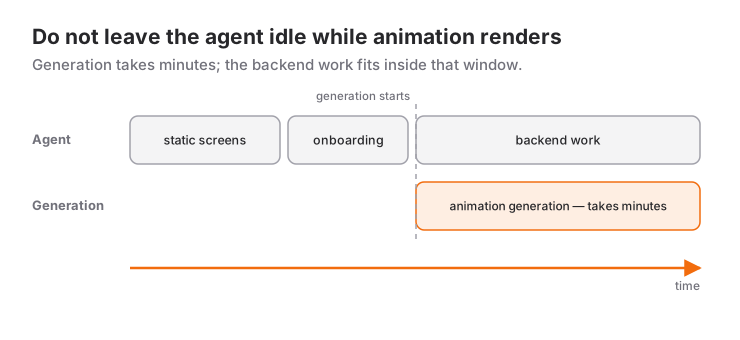
The right order:
- Build every screen with static assets.
- Build the onboarding flow (the most neglected part of an app and the one that moves conversion most).
- Kick off animation generation.
- While waiting, have it do the backend work: data model, state management, persistence.
Step four genuinely speeds the whole thing up. Waiting on generative video is not time that has to be wasted.
4. Describing the animation
"Animate the character" does not work; what comes back is usually jittery with a broken loop. A prompt that works is choreography:
"The character walks from left to right, stops, turns back to the center of the screen, picks up a coffee cup, drinks, puts it back down, and walks to where it started. In the background, keep the clouds still and let the water and plants move."
Three rules in there:
- Start and end in the same place. That is the only way a loop looks seamless.
- Say what should not move, too. A permanently drifting background is exhausting inside an app.
- Describe one event. Three separate behaviors means three separate assets.
When asking for fixes, a short screen recording with voice notes beats screenshots: moving the cursor while saying "this jitters, that loop does not hold" is far faster than drawing arrows and annotating.
5. Do not generate every animation
Using a generative model for standard micro-animations — confetti, checkmarks, loading indicators — is a waste. Libraries like LottieFiles already have them, with editable colors and speed, so you can match your palette and download.
The split: what belongs to the character is generated; what belongs to the interface is taken off the shelf. Lottie files are vector, so they stay small and crisp at any resolution, while generated video is heavy and fixed-resolution.
6. Previewing on a phone: Expo Go or EAS Build?
The browser mockup is misleading. How an animation actually feels only comes through on a device. Two paths:
Expo Go — fast and free. Enough to walk the pages and feel the flow. But databases and social sign-in do not work.
EAS Build — previews the app as if it came from the store; it has its own icon and real sign-in flows work. It needs an Apple developer account (paid annually) and an Expo account.
If you are just trying things, Expo Go. If you are genuinely shipping, EAS Build. I covered the whole store process in the App Store publishing guide.
Cost and expectations
An honest frame:
- Image generations are cheap; animation generations are expensive and slow. Decide up front how many animations you actually need — "every screen should move" ruins both the budget and the app.
- The first result will not be usable. Scale drifting, loops that do not hold, clipped edges are all normal; a correction round is part of the flow.
- This workflow solves design and assets. The product itself — data model, subscriptions, notifications, the store process — is still ordinary software work.
And on copying: draw the line between referencing and copying up front. Handing over a screen recording is for learning how a flow is built, not for reproducing screens one to one. The character, the subject and the tone should be yours.
What this actually means
A few years ago two walls stood in front of this: illustration and animation. Both take long to learn and cost a lot to buy. Now both live inside a chat session and land directly in your project.
The remaining bottleneck is direction: knowing what you want, recognizing what is bad, describing the fix. It is the video-side version of the sentence I keep repeating in my vibe coding articles: the decisions are yours, the execution is the model's.
Reference videos
- Jason Lee, Watch Me Vibe Code an Animated App with Claude Fable 5.1 + Seedance 2.5 (YouTube): an end-to-end recording of this flow.
Tool names, model versions and prices move fast; verify against current documentation before you start.
Frequently Asked Questions
What does the Higgsfield MCP connector do?
It lets you call image and video generation from inside your coding agent. The agent writes the prompt itself and the generated file lands straight in the project, removing the round trip of going to a separate tool to generate, download and copy.
How do I create in-app animation with AI?
Generate the character and backdrop with an image model, then animate them with a video model. The prompt has to read like choreography: start and end in the same place, say what stays still, and ask for one event per generation. For interface animations like confetti, take a ready-made Lottie file instead of generating one.
How long does generating an animation take?
Image generation takes seconds, animation takes minutes — up to around ten for a single asset. Structure the flow around that: start the generation and have the agent do backend work while you wait.
How do I preview the app on my phone?
Two options. Expo Go is free and fast and is enough to walk through the screens, but databases and social sign-in will not work. EAS Build previews the app as if installed from the store; it requires an Apple developer account and an Expo account.
How do I keep the character looking the same on every screen?
Settle on one reference image, have the unwanted elements (outlines, decorations) removed, and generate the expressions you need in one pass against that same reference. Derive the app's palette from the character too; when styles do not match, screens look like a collage.
Does this method mean I am copying another app?
Referencing and copying are different things. A screen recording is there to teach the model how a flow is constructed, not to reproduce screens one to one. The character, subject and tone should be yours — both legally and so the product has an identity of its own.
Related Posts
What Is Higgsfield? A Practical Start to Making Video with AI
Which models Higgsfield hosts, how credits really work, how to produce your first shot, and which tool to reach for on which job.
Making Video with AI: The Complete Guide from Idea to Publish
Script to storyboard, generation to edit, captions to thumbnail: the whole workflow for making video with AI, with tool selection and the cost maths.
Higgsfield Genjutsu: Rewriting Footage You Already Shot (with Blender)
Genjutsu keeps the motion and rebuilds the scene. Here are its two modes, its real limits, and how to turn a rough Blender block-out into an action shot.