Flutter: GestureDetector Usage and Touch Events
Last updated:
6 min read

GestureDetector lets you attach touch events to any widget that isn't tappable on its own: tap and double tap, long press, drag, two-finger scale. It draws nothing on screen; it only listens to finger movement over its child. It is the tool you reach for where ready-made buttons fall short, for example when zooming an image or dragging a card.
Live Demo
You can try this widget in the interactive example below:
💡 If the example above doesn't load, click DartPad to run it in a new tab.
Basic Usage
Pass the widget you want to make tappable as child and fill in the callback you need:
GestureDetector(
  onTap: () {
    print('Tapped!');
  },
  child: Container(
    padding: const EdgeInsets.all(20),
    color: Colors.blue,
    child: const Text('Tap me'),
  ),
)
Supported Gesture Types
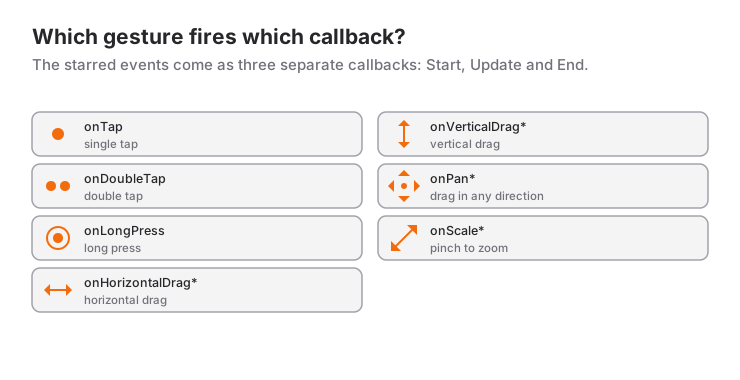
Tap Events
GestureDetector(
  onTap: () => print('Single tap'),
  onDoubleTap: () => print('Double tap'),
  onLongPress: () => print('Long press'),
  onTapDown: (details) => print('Finger down: ${details.localPosition}'),
  onTapUp: (details) => print('Finger up'),
  onTapCancel: () => print('Tap cancelled'),
  child: MyWidget(),
)
onTapDown and onTapUp also give you the coordinates of the touch; on a drawing surface or a custom slider this is where "where was it touched" comes from. onTapCancel fires when the finger went down but the movement turned into a drag.
Drag Events
There are three families for dragging: horizontal only, vertical only, and any direction (pan). Listening only to the direction you need gives more accurate results and reduces conflicts with scrollable lists.
// Horizontal drag
GestureDetector(
  onHorizontalDragStart: (details) => print('Horizontal drag started'),
  onHorizontalDragUpdate: (details) => print('Delta: ${details.delta.dx}'),
  onHorizontalDragEnd: (details) => print('Velocity: ${details.primaryVelocity}'),
  child: MyWidget(),
)

// Vertical drag
GestureDetector(
  onVerticalDragUpdate: (details) => print('Delta: ${details.delta.dy}'),
  onVerticalDragEnd: (details) => print('Velocity: ${details.primaryVelocity}'),
  child: MyWidget(),
)

// Drag in any direction
GestureDetector(
  onPanStart: (details) => print('Pan started'),
  onPanUpdate: (details) => print('Position: ${details.localPosition}'),
  onPanEnd: (details) => print('Pan ended'),
  child: MyWidget(),
)
The primaryVelocity in onHorizontalDragEnd is the speed of the finger at the moment it was released. Its sign tells you the direction: positive means a fling to the right, negative a fling to the left.
Scale (Pinch) Events
GestureDetector(
  onScaleStart: (details) => print('Scale started'),
  onScaleUpdate: (details) {
    print('Scale: ${details.scale}');
    print('Rotation: ${details.rotation}');
  },
  onScaleEnd: (details) => print('Scale ended'),
  child: MyWidget(),
)
One detail is easy to miss: details.scale starts from 1.0 at the beginning of every gesture, so it is relative to that gesture. For a zoom that sticks you have to store the starting scale and multiply; the mini scenario below shows how.
GestureDetector or InkWell?
Both catch taps; the difference is feedback. GestureDetector gives no visual response at all. InkWell paints the Material Design ripple and tells the user "your touch was registered":
InkWell(
  onTap: () => print('Tapped'),
  onLongPress: () => print('Long pressed'),
  borderRadius: BorderRadius.circular(8),
  child: const Padding(
    padding: EdgeInsets.all(16),
    child: Text('Row with a ripple'),
  ),
)| GestureDetector | InkWell | |
|---|---|---|
| Visual feedback | None | Ripple and highlight |
| Drag, scale | Yes | No |
| Needs a Material ancestor? | No | Yes |
| Typical use | Image, drawing surface, custom interaction | List row, card, custom button |
As a rule: anything that behaves like a button gets an InkWell (or simply a ready-made button); anything that needs more than a tap gets a GestureDetector. The most common home for InkWell is a card; I cover that in the Card post.
HitTestBehavior
The behavior parameter decides in which area a touch is detected. The default (when there is a child) is deferToChild: only the points where the child actually paints something catch the touch.
GestureDetector(
  behavior: HitTestBehavior.opaque, // Detect in empty areas too
  onTap: () => print('Tapped'),
  child: const SizedBox(
    width: 200,
    height: 200,
    child: Center(child: Text('Tap')),
  ),
)deferToChild: only the painted parts of the child receive the touch. Tapping the gaps of an area without a color does nothing.opaque: the widget's whole rectangle receives the touch and does not let it through to widgets behind it.translucent: the whole area receives the touch, but widgets behind it can see the same touch as well.
When to Use It and When Not To
Use GestureDetector for interactions that no ready-made widget covers: double tap to like, finding the touched point on an image, a custom drag behavior, pinch to scale.
For the following jobs Flutter has better-suited built-in solutions:
- Button behavior:
ElevatedButton,IconButton,InkWell. They provide feedback, focus handling and accessibility information on their own. Turning aContainerinto a button with a GestureDetector loses all of that. - Swipe to delete:
Dismissible. The animation and the threshold logic come built in. - Zooming and panning:
InteractiveViewer. It comes with boundary handling for content like maps or large images. - Drag and drop:
DraggableandDragTarget. - Scrolling content: scrollable widgets such as ListView. Listening for a drag in the same direction inside a scrollable list makes the two compete with each other.
Common Mistakes
1. Empty space doesn't receive the tap
Symptom: you wrapped a Row or a colourless Container in a GestureDetector; tapping the text works, tapping the gap next to it doesn't. The cause is the default deferToChild behavior. The fix is one line:
GestureDetector(
  behavior: HitTestBehavior.opaque,
  onTap: _openDetail,
  child: Row(
    children: const [Text('Title'), Spacer(), Icon(Icons.chevron_right)],
  ),
)
2. InkWell without a Material ancestor, or an invisible ripple
The first symptom is the red-screen error "No Material widget found": InkWell paints its ripple on the nearest Material widget and throws if it can't find one. Scaffold, Card and Dialog already provide that ancestor; outside of them you need to wrap the InkWell in a Material.
The second symptom is sneakier: no error, but no ripple either. The cause is usually a colored Container as the InkWell's child; the ripple is painted on the Material and the opaque color covers it. Give the color to the Material instead of the child:
Material(
  color: Colors.orange,
  borderRadius: BorderRadius.circular(8),
  child: InkWell(
    borderRadius: BorderRadius.circular(8),
    onTap: () {},
    child: const Padding(
      padding: EdgeInsets.all(16),
      child: Text('The ripple is visible'),
    ),
  ),
)
3. Using onPan and onScale together
Symptom: in debug mode, the error "Incorrect GestureDetector arguments", whose description says that scale is a superset of pan. If you need both panning and zooming, use only the onScale* callbacks; how far the finger moved is available as details.focalPointDelta. Likewise, defining all three of the horizontal, vertical and pan families at once produces the same error.
4. Single tap becomes sluggish after adding onDoubleTap
When both onTap and onDoubleTap are defined, Flutter waits a short moment after the first touch to see whether a second one follows. As a result the single tap responds noticeably late. If the double tap isn't really needed, leave it out; if it is, avoid putting a critical action on the single tap.
Mini Scenario: A Zoomable Photo
Picture a photo card: a double tap likes it, two fingers zoom it, a long press returns it to its original size.
class ZoomablePhoto extends StatefulWidget {
  const ZoomablePhoto({super.key, required this.image});

  final ImageProvider image;

  @override
  State<ZoomablePhoto> createState() => _ZoomablePhotoState();
}

class _ZoomablePhotoState extends State<ZoomablePhoto> {
  double _scale = 1.0;
  double _startScale = 1.0;
  bool _liked = false;

  @override
  Widget build(BuildContext context) {
    return GestureDetector(
      onDoubleTap: () => setState(() => _liked = !_liked),
      onLongPress: () => setState(() => _scale = 1.0),
      onScaleStart: (_) => _startScale = _scale,
      onScaleUpdate: (details) {
        setState(() {
          // details.scale is relative to this gesture, so multiply by the start
          _scale = (_startScale * details.scale).clamp(1.0, 4.0);
        });
      },
      child: Stack(
        alignment: Alignment.topRight,
        children: [
          ClipRect(
            child: Transform.scale(
              scale: _scale,
              child: Image(image: widget.image, fit: BoxFit.cover),
            ),
          ),
          Padding(
            padding: const EdgeInsets.all(8),
            child: Icon(
              _liked ? Icons.favorite : Icons.favorite_border,
              color: Colors.white,
            ),
          ),
        ],
      ),
    );
  }
}
In onScaleStart we store the current scale; without that, the photo would snap back to 1.0 at the start of every new pinch. clamp limits the scale, and ClipRect keeps the growing image from spilling outside the card. Because no onTap is defined here, the double-tap delay is not an issue. If you want the zoom to reset with a smooth transition instead of a jump, the approach from the AnimatedContainer and implicit animations post applies directly. And if you need full-blown image panning, switching to InteractiveViewer is the right call rather than writing your own maths.
Event Overview
| Event | Description |
|---|---|
onTap |
Single tap |
onDoubleTap |
Double tap |
onLongPress |
Long press |
onHorizontalDrag* |
Horizontal drag |
onVerticalDrag* |
Vertical drag |
onPan* |
Drag in any direction |
onScale* |
Pinch zoom and rotate |
Frequently Asked Questions
What is the difference between GestureDetector and InkWell?
GestureDetector only detects the gesture, gives no visual response and also supports events such as drag and scale. InkWell offers tap and long press together with the Material ripple effect, but it needs a Material ancestor.
Why doesn't GestureDetector react when I tap empty space?
With the default HitTestBehavior.deferToChild, only the points where the child paints something receive the touch. Setting the behavior parameter to HitTestBehavior.opaque makes the widget's whole area tappable.
Can onPan and onScale be used together?
No, Flutter reports that as an error in debug mode because a scale gesture already includes panning. Use only the onScale callbacks and read the movement from focalPointDelta.
For pinch zoom, GestureDetector or InteractiveViewer?
If zooming and panning is a standard need, InteractiveViewer does it with less code and built-in boundaries. If you need to attach other behavior to the scale or fully customize the gesture, choose GestureDetector.
Related Posts
Flutter: Card Widget and Design Usage
Flutter Card guide: Material 3 Card.filled and Card.outlined, clipBehavior with images, tappable cards with InkWell, common mistakes and a product card.
Flutter: Light and Dark Themes with ThemeData
Building a Flutter theme with ThemeData: ColorScheme.fromSeed, light and dark themes, ThemeMode, reading with Theme.of, TextTheme, component themes, extensions.
Flutter: Using TextField and TextEditingController
Flutter TextField guide: TextEditingController and dispose, InputDecoration, keyboard types, inputFormatters, password fields, FocusNode and onChanged.