Flutter: Zero Effort, Maximum Impact with Implicit Animations
Last updated:
5 min read

When you think of animations, do complex mathematical formulas, AnimationControllers, and pages of code come to mind? What if I told you that your widgets can animate smoothly with just a single change?
Flutter's Implicit Animations feature does exactly that. When you call setState, your widget automatically transitions from its old value to its new value. Magic? No, Flutter engineering.
Explicit vs Implicit: What's the Difference?
There are two types of animations:
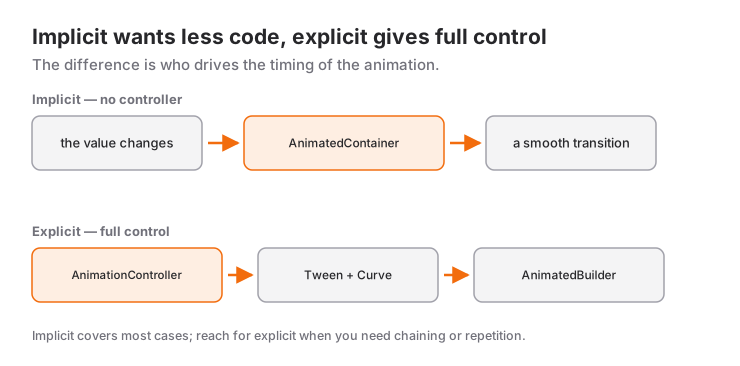
Explicit Animations
- Requires AnimationController
- Used when you want full control
- More code, more flexibility
- Example: Complex chained animations
- In depth: explicit animations with AnimationController
Implicit Animations
- No controller needed
- Sufficient for the vast majority of use cases
- Less code, great results
- Example: Button color, size change, position transitions
Golden Rule: If you don't need to control the animation from start to finish, use implicit animations.
Live Demo
You can try this widget in the interactive example below:
💡 If the example above doesn't load, click DartPad to run it in a new tab.
AnimatedContainer: The Swiss Army Knife
AnimatedContainer is the animated version of Container. It automatically animates when you change any property. If you want a refresher on what padding, alignment and decoration do in a plain Container, the widget tree and layout post covers the basics.
Basic Usage
class AnimatedBoxDemo extends StatefulWidget {
  @override
  _AnimatedBoxDemoState createState() => _AnimatedBoxDemoState();
}

class _AnimatedBoxDemoState extends State<AnimatedBoxDemo> {
  bool _isExpanded = false;

  @override
  Widget build(BuildContext context) {
    return Center(
      child: GestureDetector(
        onTap: () {
          setState(() {
            _isExpanded = !_isExpanded;
          });
        },
        child: AnimatedContainer(
          duration: Duration(milliseconds: 300),
          width: _isExpanded ? 200 : 100,
          height: _isExpanded ? 200 : 100,
          decoration: BoxDecoration(
            color: _isExpanded ? Colors.blue : Colors.red,
            borderRadius: BorderRadius.circular(_isExpanded ? 50 : 10),
          ),
          child: Center(
            child: Text(
              'Tap Me',
              style: TextStyle(color: Colors.white),
            ),
          ),
        ),
      ),
    );
  }
}
A single setState call animates three different properties simultaneously:
- Width and height
- Color
- Border radius
What Can AnimatedContainer Do?
AnimatedContainer can animate all Container properties:
1. Size Animation
AnimatedContainer(
  duration: Duration(seconds: 1),
  width: isLarge ? 300 : 100,
  height: isLarge ? 300 : 100,
  child: FlutterLogo(),
)
2. Color Transition
AnimatedContainer(
  duration: Duration(milliseconds: 500),
  color: isActive ? Colors.green : Colors.grey,
  child: Text('Status'),
)
3. Padding Animation
AnimatedContainer(
  duration: Duration(milliseconds: 300),
  padding: EdgeInsets.all(isExpanded ? 32 : 8),
  child: Icon(Icons.star),
)
4. Gradient Animation
AnimatedContainer(
  duration: Duration(milliseconds: 800),
  decoration: BoxDecoration(
    gradient: LinearGradient(
      colors: isDarkMode
          ? [Colors.black, Colors.grey[900]!]
          : [Colors.blue, Colors.purple],
    ),
  ),
)
5. Transform (Rotation/Scaling)
AnimatedContainer(
  duration: Duration(milliseconds: 400),
  transform: Matrix4.rotationZ(isRotated ? 3.14 : 0),
  child: Icon(Icons.refresh),
)
Other Implicit Animation Widgets
Flutter offers specialized implicit animation widgets for different needs:
AnimatedOpacity - Visibility Transitions
Perfect for "fade in" effects on websites:
class FadeInDemo extends StatefulWidget {
  @override
  _FadeInDemoState createState() => _FadeInDemoState();
}

class _FadeInDemoState extends State<FadeInDemo> {
  bool _isVisible = false;

  @override
  void initState() {
    super.initState();
    // Show after 1 second
    Future.delayed(Duration(seconds: 1), () {
      if (mounted) setState(() => _isVisible = true);
    });
  }

  @override
  Widget build(BuildContext context) {
    return AnimatedOpacity(
      opacity: _isVisible ? 1.0 : 0.0,
      duration: Duration(milliseconds: 600),
      child: Text(
        'Hello World!',
        style: TextStyle(fontSize: 32),
      ),
    );
  }
}
Use cases:
- Notification messages
- Show content after loading
- Hover effects
- Onboarding screens
AnimatedPositioned - Position Change in Stack
class SlidingMenuDemo extends StatefulWidget {
  @override
  _SlidingMenuDemoState createState() => _SlidingMenuDemoState();
}

class _SlidingMenuDemoState extends State<SlidingMenuDemo> {
  bool _isMenuOpen = false;

  @override
  Widget build(BuildContext context) {
    return Stack(
      children: [
        // Main content
        Container(color: Colors.white),

        // Sliding menu
        AnimatedPositioned(
          duration: Duration(milliseconds: 300),
          curve: Curves.easeInOut,
          left: _isMenuOpen ? 0 : -250,
          top: 0,
          bottom: 0,
          width: 250,
          child: Container(
            color: Colors.blue,
            child: ListView(
              children: [
                ListTile(title: Text('Menu 1', style: TextStyle(color: Colors.white))),
                ListTile(title: Text('Menu 2', style: TextStyle(color: Colors.white))),
                ListTile(title: Text('Menu 3', style: TextStyle(color: Colors.white))),
              ],
            ),
          ),
        ),

        // Hamburger button
        Positioned(
          top: 50,
          left: 20,
          child: IconButton(
            icon: Icon(Icons.menu),
            onPressed: () {
              setState(() => _isMenuOpen = !_isMenuOpen);
            },
          ),
        ),
      ],
    );
  }
}
Use cases:
- Drawer menus
- Floating action button position
- Game characters
- Parallax effects
AnimatedAlign - Alignment Transitions
Move widgets to different positions within the parent:
class BouncingBallDemo extends StatefulWidget {
  @override
  _BouncingBallDemoState createState() => _BouncingBallDemoState();
}

class _BouncingBallDemoState extends State<BouncingBallDemo> {
  Alignment _alignment = Alignment.topLeft;

  void _moveBall() {
    setState(() {
      _alignment = _alignment == Alignment.topLeft
          ? Alignment.bottomRight
          : Alignment.topLeft;
    });
  }

  @override
  Widget build(BuildContext context) {
    return GestureDetector(
      onTap: _moveBall,
      child: Container(
        width: 300,
        height: 300,
        color: Colors.grey[200],
        child: AnimatedAlign(
          alignment: _alignment,
          duration: Duration(seconds: 1),
          curve: Curves.bounceOut,
          child: Container(
            width: 50,
            height: 50,
            decoration: BoxDecoration(
              color: Colors.red,
              shape: BoxShape.circle,
            ),
          ),
        ),
      ),
    );
  }
}
AnimatedPadding - Padding Animation
AnimatedPadding(
  duration: Duration(milliseconds: 300),
  padding: EdgeInsets.all(isSelected ? 20 : 8),
  child: Card(
    child: Text('Selected Card'),
  ),
)
AnimatedDefaultTextStyle - Text Style Transitions
class TextStyleDemo extends StatefulWidget {
  @override
  _TextStyleDemoState createState() => _TextStyleDemoState();
}

class _TextStyleDemoState extends State<TextStyleDemo> {
  bool _isLarge = false;

  @override
  Widget build(BuildContext context) {
    return GestureDetector(
      onTap: () => setState(() => _isLarge = !_isLarge),
      child: AnimatedDefaultTextStyle(
        duration: Duration(milliseconds: 300),
        style: TextStyle(
          fontSize: _isLarge ? 48 : 24,
          color: _isLarge ? Colors.red : Colors.blue,
          fontWeight: _isLarge ? FontWeight.bold : FontWeight.normal,
        ),
        child: Text('Touch Me'),
      ),
    );
  }
}
AnimatedCrossFade - Transition Between Two Widgets
Smoothly transitions between two widgets:
class ToggleViewDemo extends StatefulWidget {
  @override
  _ToggleViewDemoState createState() => _ToggleViewDemoState();
}

class _ToggleViewDemoState extends State<ToggleViewDemo> {
  bool _showFirst = true;

  @override
  Widget build(BuildContext context) {
    return Column(
      children: [
        AnimatedCrossFade(
          firstChild: Container(
            width: 200,
            height: 200,
            color: Colors.blue,
            child: Center(child: Text('First Widget', style: TextStyle(color: Colors.white))),
          ),
          secondChild: Container(
            width: 200,
            height: 200,
            color: Colors.red,
            child: Center(child: Text('Second Widget', style: TextStyle(color: Colors.white))),
          ),
          crossFadeState: _showFirst
              ? CrossFadeState.showFirst
              : CrossFadeState.showSecond,
          duration: Duration(milliseconds: 500),
        ),
        SizedBox(height: 20),
        ElevatedButton(
          onPressed: () => setState(() => _showFirst = !_showFirst),
          child: Text('Switch'),
        ),
      ],
    );
  }
}
Use cases:
- Toggle list and grid view
- Show/hide empty state
- Login/Register form transitions
- Game mode switching
AnimatedSwitcher - Any Widget Change
More flexible than AnimatedCrossFade:
class CounterWithAnimation extends StatefulWidget {
  @override
  _CounterWithAnimationState createState() => _CounterWithAnimationState();
}

class _CounterWithAnimationState extends State<CounterWithAnimation> {
  int _count = 0;

  @override
  Widget build(BuildContext context) {
    return Column(
      mainAxisAlignment: MainAxisAlignment.center,
      children: [
        AnimatedSwitcher(
          duration: Duration(milliseconds: 300),
          transitionBuilder: (child, animation) {
            return ScaleTransition(scale: animation, child: child);
          },
          child: Text(
            '$_count',
            key: ValueKey<int>(_count), // Important: Key required!
            style: TextStyle(fontSize: 72, fontWeight: FontWeight.bold),
          ),
        ),
        SizedBox(height: 20),
        Row(
          mainAxisAlignment: MainAxisAlignment.center,
          children: [
            IconButton(
              icon: Icon(Icons.remove),
              onPressed: () => setState(() => _count--),
            ),
            SizedBox(width: 20),
            IconButton(
              icon: Icon(Icons.add),
              onPressed: () => setState(() => _count++),
            ),
          ],
        ),
      ],
    );
  }
}
Pro Tip: The key parameter is required for AnimatedSwitcher. Flutter uses the key to detect widget changes.
Duration and Curve: The Soul of Animation
Duration
Determines how long the animation will last:
// Very fast - Change without drawing attention
Duration(milliseconds: 150)

// Standard - Ideal for most uses
Duration(milliseconds: 300)

// Slow - To draw attention
Duration(milliseconds: 600)

// Very slow - Dramatic effects
Duration(seconds: 1)
User Experience Tip:
- Small changes: 150-200ms
- Medium changes: 300-400ms
- Large changes: 500-800ms
- Longer than 1 second: Makes users wait
Curve
The acceleration/deceleration behavior of the animation:
// Linear - Constant speed (generally not used)
curve: Curves.linear

// Slow start, speed up, slow end - Most natural
curve: Curves.easeInOut

// Slow start
curve: Curves.easeIn

// Slow end
curve: Curves.easeOut

// Elastic - Bounce back feel
curve: Curves.elasticOut

// Bounce - Bouncing effect
curve: Curves.bounceOut

// Fast start, slow end
curve: Curves.decelerate

// Overshoot and return
curve: Curves.easeOutBack
Curve Comparison
class CurveComparison extends StatefulWidget {
  @override
  _CurveComparisonState createState() => _CurveComparisonState();
}

class _CurveComparisonState extends State<CurveComparison> {
  bool _expanded = false;

  Widget _buildAnimatedBox(String label, Curve curve) {
    return Column(
      children: [
        Text(label, style: TextStyle(fontSize: 12)),
        AnimatedContainer(
          duration: Duration(seconds: 1),
          curve: curve,
          width: _expanded ? 200 : 50,
          height: 50,
          color: Colors.blue,
        ),
      ],
    );
  }

  @override
  Widget build(BuildContext context) {
    return Column(
      children: [
        _buildAnimatedBox('linear', Curves.linear),
        SizedBox(height: 10),
        _buildAnimatedBox('easeInOut', Curves.easeInOut),
        SizedBox(height: 10),
        _buildAnimatedBox('bounceOut', Curves.bounceOut),
        SizedBox(height: 10),
        _buildAnimatedBox('elasticOut', Curves.elasticOut),
        SizedBox(height: 20),
        ElevatedButton(
          onPressed: () => setState(() => _expanded = !_expanded),
          child: Text('Start Animations'),
        ),
      ],
    );
  }
}
Real World Use Cases
1. Expandable Card
class ExpandableCard extends StatefulWidget {
  final String title;
  final String content;

  ExpandableCard({required this.title, required this.content});

  @override
  _ExpandableCardState createState() => _ExpandableCardState();
}

class _ExpandableCardState extends State<ExpandableCard> {
  bool _isExpanded = false;

  @override
  Widget build(BuildContext context) {
    return GestureDetector(
      onTap: () => setState(() => _isExpanded = !_isExpanded),
      child: AnimatedContainer(
        duration: Duration(milliseconds: 300),
        curve: Curves.easeInOut,
        padding: EdgeInsets.all(16),
        decoration: BoxDecoration(
          color: Colors.white,
          borderRadius: BorderRadius.circular(12),
          boxShadow: [
            BoxShadow(
              color: Colors.black12,
              blurRadius: _isExpanded ? 10 : 5,
              spreadRadius: _isExpanded ? 2 : 0,
            ),
          ],
        ),
        child: Column(
          crossAxisAlignment: CrossAxisAlignment.start,
          children: [
            Row(
              mainAxisAlignment: MainAxisAlignment.spaceBetween,
              children: [
                Text(
                  widget.title,
                  style: TextStyle(fontSize: 18, fontWeight: FontWeight.bold),
                ),
                AnimatedRotation(
                  duration: Duration(milliseconds: 300),
                  turns: _isExpanded ? 0.5 : 0,
                  child: Icon(Icons.expand_more),
                ),
              ],
            ),
            AnimatedCrossFade(
              firstChild: SizedBox.shrink(),
              secondChild: Padding(
                padding: EdgeInsets.only(top: 12),
                child: Text(widget.content),
              ),
              crossFadeState: _isExpanded
                  ? CrossFadeState.showSecond
                  : CrossFadeState.showFirst,
              duration: Duration(milliseconds: 300),
            ),
          ],
        ),
      ),
    );
  }
}
2. Like Button Animation
class LikeButton extends StatefulWidget {
  @override
  _LikeButtonState createState() => _LikeButtonState();
}

class _LikeButtonState extends State<LikeButton> {
  bool _isLiked = false;
  int _likeCount = 42;

  @override
  Widget build(BuildContext context) {
    return GestureDetector(
      onTap: () {
        setState(() {
          _isLiked = !_isLiked;
          _likeCount += _isLiked ? 1 : -1;
        });
      },
      child: Row(
        mainAxisSize: MainAxisSize.min,
        children: [
          AnimatedContainer(
            duration: Duration(milliseconds: 200),
            curve: Curves.easeInOut,
            padding: EdgeInsets.all(8),
            decoration: BoxDecoration(
              color: _isLiked ? Colors.red.withValues(alpha: 0.2) : Colors.transparent,
              shape: BoxShape.circle,
            ),
            child: AnimatedSwitcher(
              duration: Duration(milliseconds: 200),
              transitionBuilder: (child, animation) {
                return ScaleTransition(scale: animation, child: child);
              },
              child: Icon(
                _isLiked ? Icons.favorite : Icons.favorite_border,
                key: ValueKey<bool>(_isLiked),
                color: _isLiked ? Colors.red : Colors.grey,
                size: 28,
              ),
            ),
          ),
          SizedBox(width: 4),
          AnimatedDefaultTextStyle(
            duration: Duration(milliseconds: 200),
            style: TextStyle(
              color: _isLiked ? Colors.red : Colors.grey,
              fontWeight: _isLiked ? FontWeight.bold : FontWeight.normal,
              fontSize: 16,
            ),
            child: Text('$_likeCount'),
          ),
        ],
      ),
    );
  }
}
3. Loading Placeholder (Skeleton Screen)
class ShimmerLoading extends StatefulWidget {
  @override
  _ShimmerLoadingState createState() => _ShimmerLoadingState();
}

class _ShimmerLoadingState extends State<ShimmerLoading> {
  bool _isLoading = true;

  @override
  void initState() {
    super.initState();
    // Show content after 3 seconds
    Future.delayed(Duration(seconds: 3), () {
      if (mounted) setState(() => _isLoading = false);
    });
  }

  @override
  Widget build(BuildContext context) {
    return AnimatedCrossFade(
      firstChild: Column(
        crossAxisAlignment: CrossAxisAlignment.start,
        children: [
          Container(
            width: double.infinity,
            height: 200,
            decoration: BoxDecoration(
              color: Colors.grey[300],
              borderRadius: BorderRadius.circular(12),
            ),
          ),
          SizedBox(height: 12),
          Container(
            width: 200,
            height: 20,
            color: Colors.grey[300],
          ),
          SizedBox(height: 8),
          Container(
            width: 150,
            height: 20,
            color: Colors.grey[300],
          ),
        ],
      ),
      secondChild: Column(
        crossAxisAlignment: CrossAxisAlignment.start,
        children: [
          Image.network(
            'https://picsum.photos/400/200',
            height: 200,
            width: double.infinity,
            fit: BoxFit.cover,
          ),
          SizedBox(height: 12),
          Text('Title Goes Here', style: TextStyle(fontSize: 18, fontWeight: FontWeight.bold)),
          SizedBox(height: 8),
          Text('Subtitle goes here', style: TextStyle(color: Colors.grey)),
        ],
      ),
      crossFadeState: _isLoading
          ? CrossFadeState.showFirst
          : CrossFadeState.showSecond,
      duration: Duration(milliseconds: 500),
    );
  }
}
4. Floating Action Button Morph
class MorphingFAB extends StatefulWidget {
  @override
  _MorphingFABState createState() => _MorphingFABState();
}

class _MorphingFABState extends State<MorphingFAB> {
  bool _isExpanded = false;

  @override
  Widget build(BuildContext context) {
    return AnimatedContainer(
      duration: Duration(milliseconds: 300),
      curve: Curves.easeInOut,
      width: _isExpanded ? 200 : 56,
      height: 56,
      decoration: BoxDecoration(
        color: Colors.blue,
        borderRadius: BorderRadius.circular(28),
      ),
      child: Material(
        color: Colors.transparent,
        child: InkWell(
          borderRadius: BorderRadius.circular(28),
          onTap: () => setState(() => _isExpanded = !_isExpanded),
          child: Padding(
            padding: EdgeInsets.symmetric(horizontal: 16),
            child: Row(
              mainAxisSize: MainAxisSize.min,
              children: [
                Icon(Icons.add, color: Colors.white),
                if (_isExpanded) ...[
                  SizedBox(width: 12),
                  Text(
                    'Add New',
                    style: TextStyle(color: Colors.white, fontSize: 16),
                  ),
                ],
              ],
            ),
          ),
        ),
      ),
    );
  }
}
Performance Tips
1. Use const Constructor
// ❌ Bad - New instance every rebuild
AnimatedContainer(
  duration: Duration(milliseconds: 300),
  child: Text('Static Text'),
)

// ✅ Good - Const child is cached
AnimatedContainer(
  duration: Duration(milliseconds: 300),
  child: const Text('Static Text'),
)
2. Unchanged Properties Are Fine, Pick the Right Widget
AnimatedContainer only interpolates the properties whose values change. A width and height that never change add no meaningful cost, so moving them into a separate outer Container does nothing for performance. The real gain is choosing the dedicated widget when you animate a single thing: AnimatedOpacity for opacity, AnimatedAlign for alignment, AnimatedPadding for padding. The code states its intent more clearly.
// Only the color changes: AnimatedContainer is fine, fixed sizes cost nothing
AnimatedContainer(
  duration: const Duration(milliseconds: 300),
  width: 100,
  height: 100,
  color: selectedColor,
)

// Only the opacity changes: the dedicated widget is clearer
AnimatedOpacity(
  opacity: isVisible ? 1.0 : 0.0,
  duration: const Duration(milliseconds: 300),
  child: const FlutterLogo(size: 100),
)
3. Optimize with RepaintBoundary
RepaintBoundary(
  child: AnimatedOpacity(
    opacity: isVisible ? 1.0 : 0.0,
    duration: Duration(milliseconds: 300),
    child: HeavyWidget(),
  ),
)
4. Don't Animate Too Many Things Simultaneously
// ❌ Bad - 100 widgets animating at once
ListView.builder(
  itemCount: 100,
  itemBuilder: (context, index) {
    return AnimatedContainer(
      duration: Duration(seconds: 1),
      height: heights[index],
      child: ListTile(title: Text('Item $index')),
    );
  },
)

// ✅ Good - Only visible ones should animate
Common Mistakes and Solutions
Error 1: Forgetting Key in AnimatedSwitcher
// ❌ Wrong - Animation won't work
AnimatedSwitcher(
  duration: Duration(milliseconds: 300),
  child: Text('$count'), // No key!
)

// ✅ Correct
AnimatedSwitcher(
  duration: Duration(milliseconds: 300),
  child: Text('$count', key: ValueKey(count)),
)
Error 2: Duration Too Long
// ❌ User waits 3 seconds
AnimatedContainer(
  duration: Duration(seconds: 3),
  color: newColor,
)

// ✅ Fast and responsive
AnimatedContainer(
  duration: Duration(milliseconds: 300),
  color: newColor,
)
Error 3: Wrong Curve Choice
// ❌ Linear looks too mechanical
AnimatedContainer(
  duration: Duration(milliseconds: 300),
  curve: Curves.linear,
  width: newWidth,
)

// ✅ Natural looking
AnimatedContainer(
  duration: Duration(milliseconds: 300),
  curve: Curves.easeInOut,
  width: newWidth,
)
All Implicit Animation Widgets
Flutter has 15+ implicit animation widgets:
| Widget | What It Animates |
|---|---|
| AnimatedContainer | All Container properties |
| AnimatedOpacity | Opacity (transparency) |
| AnimatedPadding | Padding (spacing) |
| AnimatedPositioned | Position in Stack |
| AnimatedAlign | Alignment |
| AnimatedDefaultTextStyle | Text style |
| AnimatedPhysicalModel | Shadow and elevation |
| AnimatedCrossFade | Transition between two widgets |
| AnimatedSwitcher | Any widget change |
| AnimatedSize | Widget size |
| AnimatedRotation | Rotation angle |
| AnimatedScale | Scale |
| AnimatedSlide | Slide (offset) |
| AnimatedFractionallySizedBox | Size relative to parent |
| AnimatedTheme | Theme changes |
Summary
- Implicit animations: Animation without code (setState is enough)
AnimatedContainer: Most versatile implicit animation widgetDuration: Animation duration (ideal: 200-400ms)Curve: Acceleration/deceleration behavior (ideal: easeInOut)AnimatedOpacity: For fade in/out effectsAnimatedPositioned: Position change in StackAnimatedCrossFade: Transition between two widgetsAnimatedSwitcher: Any widget change (key required!)- Performance: const, RepaintBoundary, no unnecessary animations
- UX: Short durations, natural curves, purposeful use
Implicit animations are one of Flutter's most powerful features: maximum impact for minimum code, and most of the time the setState + Animated* combination is all you need. When the animation happens between two pages rather than inside one screen, the dedicated tool is the Hero animation, which carries the same visual from page to page.
Frequently Asked Questions
When is an implicit animation not enough?
As soon as you need to pause, reverse, repeat, or chain several animations together, the implicit widgets run out of road. That is the moment to move to an explicit animation driven by an AnimationController.
Why doesn't my AnimatedContainer animate at all?
Most often the widget never rebuilds: if you changed the value outside setState, Flutter has no old and new value to interpolate between. The second usual cause is handing it a fresh key on every build — Flutter then treats it as a different widget and paints it from scratch instead of transitioning.
What duration should I pick?
For small feedback such as a color or scale change, 150–250 ms works well; for larger movements like a panel opening, 250–400 ms. Anything over a second makes the app feel sluggish rather than smooth.
Related Posts
Flutter Hero Animation and Page Transition Effects
Flutter Hero animations: tag matching, flight duration and curve, flightShuttleBuilder, common mistakes, and custom page transitions with PageRouteBuilder.
Flutter Explicit Animations: AnimationController Guide
Create professional animations in Flutter with AnimationController, Tween, and AnimatedBuilder. Learn all the details of explicit animations.
Flutter: Light and Dark Themes with ThemeData
Building a Flutter theme with ThemeData: ColorScheme.fromSeed, light and dark themes, ThemeMode, reading with Theme.of, TextTheme, component themes, extensions.